
- What Is Email to Text?
- But There’s a Problem – Carrier Email-to-SMS Gateways Are Shut Down
- The Best Alternative: Send SMS From Email Using TextBolt
- How to Send SMS From Email Using TextBolt (Step-by-Step)
- When Should You Use Email-to-Text?
- Best Practices for Sending SMS From Email
- Start Sending SMS From Gmail With TextBolt
- Frequently Asked Questions
Send Texts Directly From Gmail
How to Send Email to Text in 2026: A Complete Step-by-Step Guide

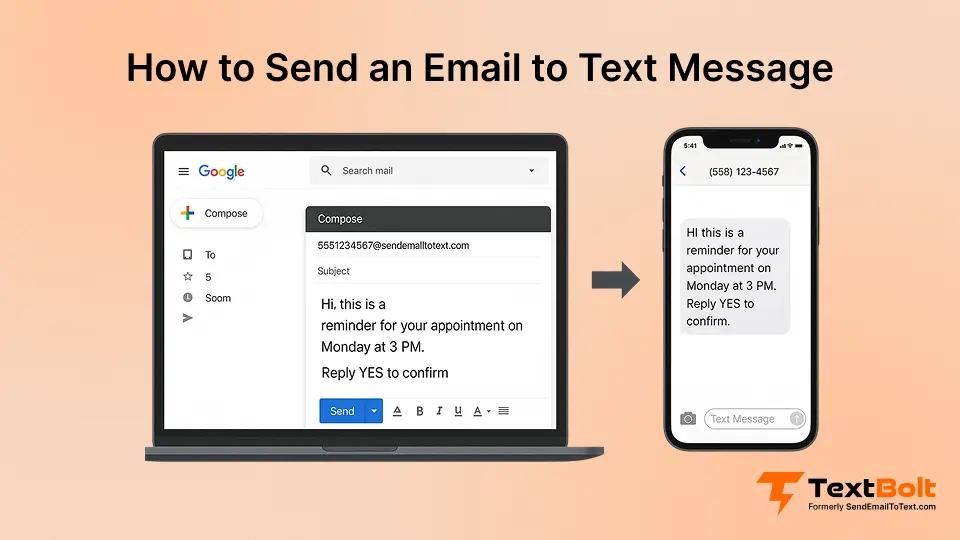
Ever needed to text someone but didn’t have your phone with you? Or maybe you want to reach a customer fast without using a separate SMS tool. It happens more often than you’d think, especially when you’re on a computer, working from Gmail, or managing multiple conversations at once.
That’s where email-to-SMS becomes incredibly useful. Even though texting seems simple, it’s still one of the most effective communication channels today and the numbers back this up.
Studies show that SMS messages have open rates as high as 98%, while email usually stays around 20–32%, a dramatic difference in visibility and urgency. Even better, most text messages are read within the first few minutes of being received. Learn more about how SMS compares to email in this SMS vs email marketing guide.
Compare that to email, where messages can sit unread for hours (or days), and it’s easy to see why SMS still matters.
And the best part?
You can send SMS directly from your email whether you want to reach a customer, notify a team member, or send quick alerts.
In this guide, we’ll walk you step-by-step through how to send a text from email, the limitations of carrier gateways (many of which have shut down), and the easiest way to send reliable SMS through Gmail using tools like TextBolt.
What Is Email to Text?
Email-to-text, also known as texting with email is a feature that allows you to send a text message to a mobile number directly from your email inbox.
You simply compose an email → send it to a special “SMS gateway” address → and the carrier converts it into a text message. Our email-to-SMS guide explains how the process works in detail, including formats, limitations, and modern business use cases.
For example, you open Gmail, type a short message, and send it using the special email format given by your email‑to‑SMS service (for instance, phonenumber@gateway-domain.com). The recipient gets it as a normal text message on their phone and can reply like any other SMS.
But There’s a Problem – Carrier Email-to-SMS Gateways Are Shut Down
For years, the “free” way to send email to SMS was to use carrier addresses like number@carrier-domain.com. That method is now effectively dead for major US carriers.
Why carriers killed these gateways:
- They were abused for spam and fraud
- They offered weak security and no real controls
- Delivery was unpredictable and hard to support
- Carrier spam filters started blocking a huge share of messages
Mostly all carriers have fully shut them down, while others allow extremely limited or inconsistent delivery.
Examples:
| Carrier | Status |
| Verizon VText | Shut down for businesses |
| AT&T @txt.att.net | Shut down |
| T-Mobile @tmomail.net | Shut down |
| Sprint | Shut down after T-Mobile merger |
Because of this, businesses & professionals now rely on dedicated email-to-SMS platforms for reliable delivery.
Keep Sending Texts From Your Inbox
Carrier email-to-SMS gateways were shut down. Switch to a business‑ready tool that lets you keep texting from your inbox.
The Best Alternative: Send SMS From Email Using TextBolt
TextBolt is the modern alternative for sending SMS from email now that carrier gateways were shut down. Instead of gambling on number@carrier-domain tricks that no longer work, you keep your normal inbox workflow and let TextBolt handle the SMS delivery in the background.
With TextBolt, you send texts:
- Directly from Gmail
- Without using a physical phone or shared device
- Without any API or developer setup
- Without learning a complicated new dashboard
You simply write an email, send it through TextBolt using its simple format, and TextBolt converts it into a text message that reaches on your customer’s phone like a normal SMS. Replies come straight back to your email, so your team can manage the whole conversation from the inbox they already use every day.
Why TextBolt Is Better Than Carrier Gateways
- No random carrier gateway failures or silent message drops
- Works with all major U.S. and Canadian mobile numbers over approved business routes
- Uses secure, business‑grade messaging with 10DLC/toll‑free compliance for higher deliverability
- Simple Gmail add‑on and email-based workflow – no extra tools required to get started
- No APIs, webhooks, or technical setup needed
- Supports business features like two‑way SMS, templates, logs, and team access from shared inboxes
Now the next step is seeing how TextBolt actually works in your day-to-day workflow. Let’s dive in.
How to Send SMS From Email Using TextBolt (Step-by-Step)
Once you have TextBolt set up as your email-to-SMS alternative, sending a text from your inbox is surprisingly simple. Here’s exactly how the flow works from hitting compose in Gmail to your customer receiving a real SMS on their phone.
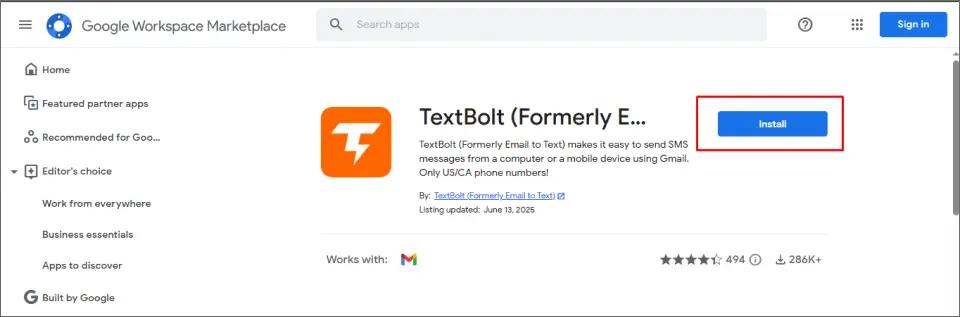
Step 1 – Install the TextBolt Gmail Add-on
Open Gmail and go to the Google Workspace Marketplace. Search for TextBolt and install the add-on so it appears in your Gmail sidebar for everyone who needs to send texts.
Step 2 – Create Your Account and Verify Your Business Number
Launch the TextBolt add-on in Gmail and create your TextBolt account. Complete the short business verification so TextBolt can register your 10DLC or toll‑free number and connect you to major U.S. and Canadian carriers with high deliverability.
Step 3 – Compose an Email Like Normal
Click compose in Gmail, just like you would for any regular email. With TextBolt, you can easily text with email, sending short, clear messages that reach your customers instantly.
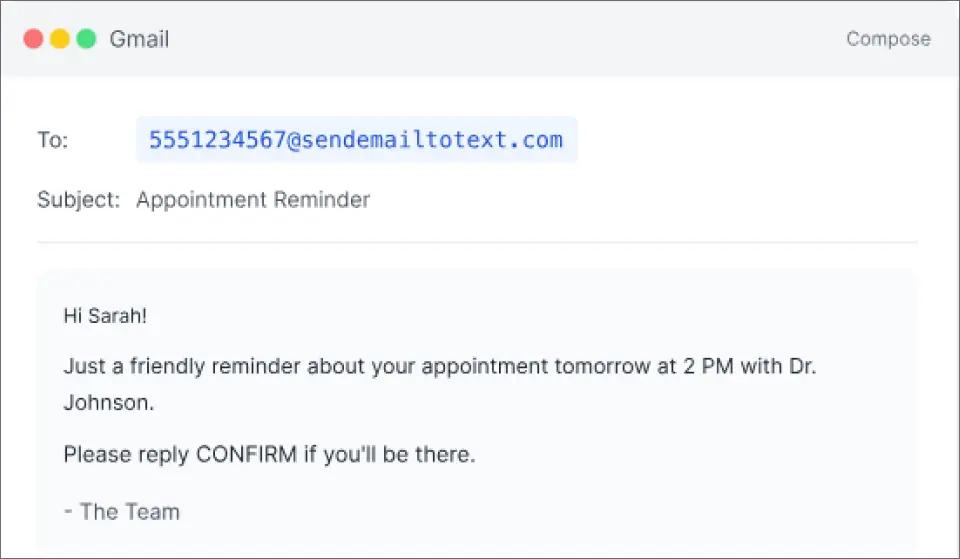
Step 4 – Add the Phone Number or Select a Contact
In the To field, add the recipient’s mobile number using the format TextBolt provides, or select a contact from your synced list. You can send to a single person or to multiple recipients if your plan supports group messaging.
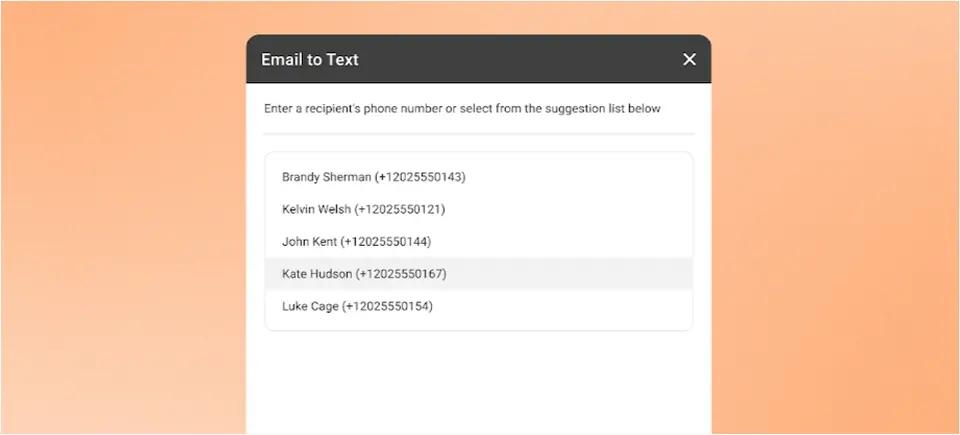
Step 5 – Hit Send and Deliver as SMS
Press send in Gmail, TextBolt instantly converts your email into an SMS and delivers it from your verified business number. The recipient sees a normal text message on their phone no apps, portals, or special links required. If you also want to schedule texts from Gmail, you can do that too.
Step 6 – View and Reply to SMS Inside Gmail
When the recipient replies, TextBolt converts their SMS into an email and drops it back into your inbox as part of the same thread. You and your team reply from Gmail like any other email, while TextBolt keeps full SMS logs for tracking, compliance, and team visibility.
When Should You Use Email-to-Text?
Email-to-text works best when you need short, time-sensitive messages that people will actually see. It is ideal for situations where email alone is too slow or likely to be ignored.
Here are common scenarios where sending SMS from your inbox makes a real difference:
- Customer reminders (upcoming appointments, payments, renewals)
- Appointment confirmations and same-day updates
- Quick client updates (running late, rescheduling, status changes)
- Employee alerts and shift changes
- Internal announcements that must not be missed (IT incidents, urgent ops notes)
- Delivery and service updates (on the way, delivered, delayed)
- School or class notifications for parents and students
- Light marketing follow-ups to opted-in contacts (check-ins, promos, review requests)
Best Practices for Sending SMS From Email
To get better deliverability and responses when you text from your inbox, keep these simple best practices in mind:
- Keep it short. SMS is designed for brief messages, and standard texts are limited to about 160 characters before they are split into multiple parts.
- Include your business name so recipients immediately recognize who is texting them and are less likely to mistake it for spam.
- Avoid links unless necessary, and use short URLs when you do include them to save characters and keep the message clear.
- Do not send too many messages; aim for a reasonable frequency so contacts do not feel spammed and unsubscribe.
- Use the same sender or number consistently so people can quickly identify your messages and build trust over time.
- Use a dedicated SMS or email-to-text tool if you send frequently so you can manage replies, compliance, and volume more reliably.
Stop Wasting Time Switching Between Apps
Keep every customer conversation in one place and eliminate workflow interruptions by sending texts directly from Gmail.
Start Sending SMS From Gmail With TextBolt
Email-to-text is one of the fastest ways to make sure important updates actually get seen, without forcing your team to switch tools or learn a new platform. By sending short, clear SMS directly from Gmail, you can handle reminders, confirmations, and quick status updates from the same inbox you already live in every day.
With TextBolt, you can plug SMS into your existing Gmail workflow, use your verified business number, and keep all communication tracked in one place. Install the TextBolt Gmail add-on, follow the quick setup steps, and send your first email-to-text message in just a few minutes.
Not sure if it is right for you? Start your 7 day free trial, and see how TextBolt fits your workflow.
Frequently Asked Questions
Can people reply to my SMS if I send it by email?
Yes. With an email to text service like TextBolt, SMS replies are delivered back to your email inbox so you can continue the conversation from the same thread.
Do I need a special phone number to use TextBolt?
TextBolt provides a dedicated business texting number and links it to your email so messages are sent and received through that verified number instead of a personal phone.
Is email-to-text secure and compliant for my industry?
TextBolt helps with compliance basics like using a registered business number, managing opt-outs, and controlling who can send messages from your domain.
Can I schedule SMS messages from Gmail?
Yes. TextBolt supports scheduling so you can compose a message in Gmail and choose a future time for it to be delivered as SMS. This is useful for appointment reminders, payment nudges, and time-based alerts.
What happens if my message is longer than 160 characters?
Most carriers split long messages into multiple SMS segments, which can affect how the text appears and how much it costs. Keeping messages concise or using an SMS-aware tool like TextBolt helps you stay within limits and avoid unexpected splits.
Can I try TextBolt before upgrading to a paid plan?
Yes. TextBolt offers a 7 days free trial so you can connect Gmail, send real SMS messages, and test the workflow with your team before committing.
How do I send a text from an email on my iPhone?
With TextBolt, you just send an email from your inbox to the special TextBolt address format, and it is automatically converted into SMS and delivered from your business texting number.