
- Why Send Text Messages From Outlook?
- The 4 Methods to Send SMS From Outlook
- Common Challenges With Outlook SMS (And How to Solve Them)
- Business Use Cases for Outlook SMS
- How to Choose the Right Outlook SMS Method
- Getting Started With Professional Outlook SMS
- Start Sending SMS From Outlook Today
- Frequently Asked Questions
Send SMS from Outlook Without Plugins
How to Send SMS From Outlook: 4 Methods Compared (2026 Guide)

You’re staring at Microsoft Outlook, needing to send a quick text to a client or team member. Picking up your phone feels inefficient when you’re already at your computer. Is there a way to send SMS directly from Outlook?
The short answer: yes, but the method you choose matters more than ever.
Here’s what most guides won’t tell you: the free carrier gateway method that worked for years is now unreliable or completely dead. AT&T officially shut down its email-to-text gateway on June 17, 2025. Verizon discontinued its vtext.com service in late 2024, and T-Mobile’s tmomail.net gateway began failing in November 2024 before becoming completely non-functional by December 14, 2024. Businesses that relied on these free gateways suddenly found their messages disappearing into the void.
This guide covers every current method to send SMS with Outlook, from free options to professional email-to-text solutions. You’ll learn which approaches still work, which ones don’t, and how to choose the right method for your situation.
Why Send Text Messages From Outlook?
Before diving into how to send texts from Outlook, let’s address why this approach offers several practical advantages for business users:
- Speed and efficiency. When you’re already working in Outlook managing emails, switching to your phone to send a text disrupts your workflow. Typing on a full keyboard is faster than tapping on a phone screen.
- Professional documentation. Text messages sent through certain Outlook methods create a record in your email system. This provides an audit trail for compliance-sensitive industries like healthcare, finance, and legal services.
- Team accessibility. When SMS comes through Outlook rather than one person’s phone, multiple team members can potentially access and respond to messages. This eliminates the single point of failure problem where one sick employee means missed customer communications.
- Immediate visibility. SMS messages have open rates hovering around 98%, compared to email’s typical 20-30%. When you need someone to actually see your message, texting wins.
The challenge is finding a reliable method that delivers these benefits without the headaches of failed messages and carrier restrictions.
The 4 Methods to Send SMS From Outlook
There are four main approaches to send SMS through Outlook, each with different trade-offs in cost, reliability, and features.
| Method | Cost | Reliability | Best For |
| Carrier Email Gateways | Free | Very Low (mostly dead) | Testing only |
| Email-to-SMS Service (TextBolt) | $29+/month | Up to 98% | Professional business SMS |
| Outlook Add-ins/Plugins | $20-50+/month | Medium | Basic business use |
| Power Automate + SMS | Variable | Medium | Automation workflows |
Let’s examine each method in detail.
Method 1: Carrier Email-to-SMS Gateways (Legacy Method)
The traditional free method involves sending an email to a special carrier address that converts it to SMS. You compose a message in Outlook, address it to the recipient’s phone number plus their carrier’s gateway domain, and the carrier delivers it as a text.
How Carrier Gateways Worked
The format was straightforward: phonenumber@carriergateway.com
For example, to text a Verizon customer, you would send an email to 5551234567@vtext.com. The carrier would receive your email and forward it as an SMS to that phone number.
Current Carrier Gateway Status
Here’s the reality that most guides still don’t acknowledge:
| Carrier | Gateway Address | Status |
| AT&T | @txt.att.net | Shut down June 17, 2025 |
| Verizon | @vtext.com | Discontinued late 2024 |
| T-Mobile | @tmomail.net | Discontinued December 2024 |
| Sprint | @messaging.sprintpcs.com | Merged with T-Mobile, dead |
If you find a guide recommending carrier gateways as a reliable solution in 2026, that information is outdated. These gateways were discontinued because:
- Open gateways became vectors for spam and phishing attacks
- No authentication or sender verification existed
- Carriers faced mounting infrastructure and abuse costs
- Industry shifted toward regulated A2P (application-to-person) messaging
Bottom line: Carrier gateways are not a viable option for business SMS. If your current workflow depends on them, you need to migrate to a reliable alternative immediately.
Carrier Email-to-SMS Gateways Were Discontinued
Major carriers retired their email-to-text services, making gateway-based texting unreliable. TextBolt replaced outdated gateways with carrier-approved SMS you can send directly from Outlook.
Method 2: Email-to-SMS Service (The Reliable Way)
The most reliable method for sending SMS from Outlook is using a professional email-to-text service like TextBolt. This approach preserves the simplicity of the original carrier gateway method while adding the reliability and features businesses need.
How Email-to-SMS Services Work
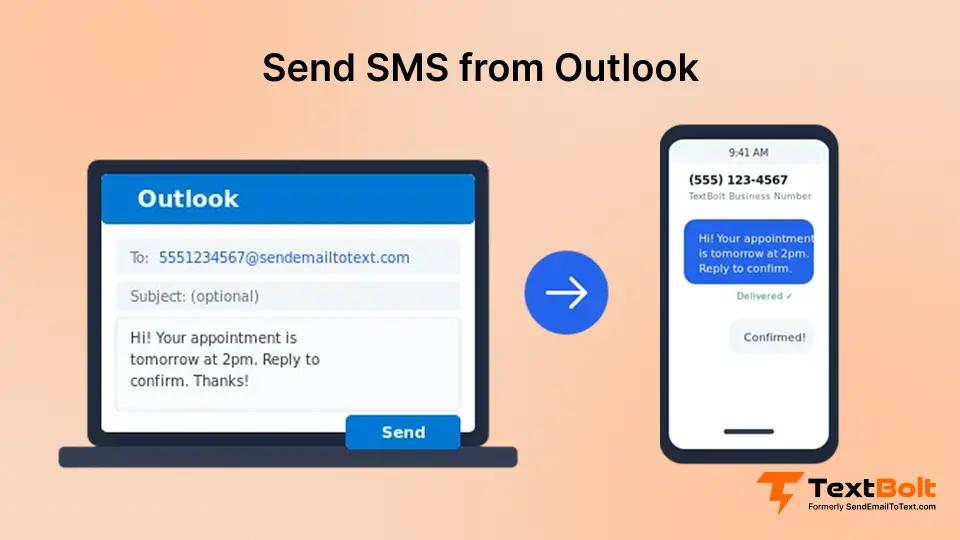
Instead of relying on carrier gateways, you send emails to a dedicated SMS gateway address. With TextBolt, you compose a normal email in Outlook and address it to phonenumber@sendemailtotext.com. The service receives your email and delivers it as an SMS from a verified business number.
The key difference from carrier gateways: professional email-to-SMS services use 10DLC-registered business numbers and carrier-approved routing. This means your messages actually get delivered instead of getting filtered as spam. For a step-by-step explanation of this delivery flow and compliance model, see this guide to email-to-SMS.
Step-by-Step: Sending SMS From Outlook With TextBolt
Here’s exactly how to send SMS from your email:
Step 1: Set Up Your Account
Sign up for TextBolt and complete business verification. This process takes about 30 minutes and includes 10DLC registration, which ensures your messages are carrier-approved for reliable delivery.
Step 2: Note Your Sending Format
After setup, you’ll use this email address format: phonenumber@sendemailtotext.com
For example, to text 555-123-4567, you’d address your email to: 5551234567@sendemailtotext.com
Step 3: Compose Your Message in Outlook
- Open Outlook and click New Email
- In the To field, enter the phone number with the TextBolt domain
- Leave the subject line blank (subjects can cause delivery issues)
- Type your message in the email body
- Click Send
TextBolt converts your email to SMS and delivers it from your verified business number. The recipient sees a professional text message, not a weird email forward.
Step 4: Receive Replies in Outlook
When recipients reply to your text, their responses arrive in your Outlook inbox as emails. You can continue the conversation without switching applications.
Method 3: Outlook SMS Add-ins and Plugins
Several third-party companies offer Outlook plugins that add SMS functionality directly to your email client. These tools install a button or panel in Outlook that lets you compose and send text messages without leaving the application.
How Outlook SMS Plugins Work
After installing a plugin from a provider like ClickSend, touchSMS, or CompleteSMS, you’ll see new SMS options in your Outlook toolbar. Clicking the SMS button opens a compose window where you enter the recipient’s phone number and message. The plugin routes your message through the provider’s SMS gateway for delivery.
Setting Up an Outlook SMS Plugin
The general process involves these steps:
- Create an account with the SMS provider
- Download and install the plugin from their website or Microsoft AppSource
- Authenticate the plugin with your provider credentials
- Configure default settings like sender ID
- Start sending using the new SMS button in Outlook
Most plugins work with Outlook desktop applications (Windows and Mac), though support for Outlook web and mobile varies by provider.
Pros of Outlook Plugins
- Familiar interface. The SMS panel integrates into Outlook’s existing layout.
- Contact integration. Some plugins can pull from your Outlook contacts.
- No carrier lookup needed. The provider handles routing to the correct carrier.
- Delivery tracking. Most plugins show whether messages were delivered.
Cons of Outlook Plugins
- Desktop dependency. Most plugins only work with Outlook desktop, not web or mobile versions.
- Installation required. IT departments may need to approve and deploy the plugin.
- Separate login. You typically need another account beyond your Microsoft credentials.
- Cost varies widely. Pricing ranges from pay-per-message to monthly subscriptions.
- Reliability varies. Not all providers have 10DLC compliance for reliable business messaging.
Plugin Pricing Examples
| Provider | Pricing Model | Starting Cost |
| ClickSend | Pay-per-message | ~$0.0226-$0.0109/SMS |
| touchSMS | Credits | Varies by volume |
| Red Oxygen | Subscription | $30+/month (Starting plan) |
Outlook plugins work reasonably well for occasional business texting, but they require installing additional software and managing another vendor relationship.
Method 4: Power Automate SMS Integration
Microsoft Power Automate (formerly Flow) lets you create automated workflows that connect Outlook to SMS services. This approach is more technical but offers flexibility for complex scenarios.
How Power Automate SMS Works
You create a “flow” that triggers when certain conditions are met. For example, you might create an automation that sends an SMS whenever you receive an email with a specific subject line, or when you add an event to your Outlook calendar.
Power Automate connects to SMS providers through connectors. Popular options include Twilio, Plivo, and various SMS gateway services.
Basic Power Automate SMS Setup
Setting up Power Automate for SMS involves:
- Access Power Automate through your Microsoft 365 account
- Create a new flow with your desired trigger (email received, calendar event, etc.)
- Add an SMS connector for your chosen provider
- Configure the SMS action with recipient number and message content
- Authenticate with your SMS provider credentials
- Test and activate the flow
Limitations of Power Automate
- Technical setup required. Creating flows requires understanding Power Automate’s interface.
- Separate SMS provider needed. Power Automate just connects the pieces; you still need a Twilio or similar account.
- Not for manual texting. This approach automates SMS; it’s not ideal for ad-hoc messages.
- Costs add up. You pay for both Power Automate (premium connectors) and the SMS provider.
Power Automate makes sense for technical users who need automated notifications. For regular business texting, simpler solutions exist.
Why Email-to-SMS Services Beat Other Methods
| Feature | Carrier Gateways | Plugins | Power Automate | TextBolt |
| Works in 2026 | No | Yes | Yes | Yes |
| No software install | Yes | No | No | Yes |
| Works on any device | Yes | Desktop only | Web | Yes |
| 10DLC compliant | No | Varies | Varies | Yes |
| Delivery rate | Very Low | Varies by provider | Varies | Up to 98% |
| Two-way messaging | Unreliable | Yes | Limited | Yes |
| Professional number | No | Yes | Yes | Yes |
| Team access | No | Limited | Limited | Yes |
Ready to Send Reliable SMS From Outlook?
TextBolt works with Outlook, Gmail, or any email client. No plugins to install, no carrier lookups, no failed deliveries. Just send an email and it arrives as a professional text message.
Common Challenges With Outlook SMS (And How to Solve Them)
Businesses encounter predictable problems when trying to send SMS from Outlook. Here’s how to address each one.

Challenge 1: Messages Don’t Get Delivered
With carrier gateways gone, undelivered messages are the most common complaint. The solution is using a 10DLC-compliant service that routes messages through carrier-approved channels.
Fix: Switch to a professional email-to-SMS service with verified business numbers and delivery confirmation.
Challenge 2: You Don’t Know the Recipient’s Carrier
This was a fatal flaw of carrier gateways. You had to know whether your contact used AT&T, Verizon, or T-Mobile to send to the correct gateway.
Fix: Email-to-SMS services handle carrier routing automatically. You just enter the phone number; the service figures out the rest.
Challenge 3: Only One Person Can Send Texts
When SMS goes through one person’s phone or Outlook account, your business has a single point of failure. What happens when that person takes vacation or calls in sick?
Fix: Email-to-SMS services allow multiple team members to send and receive texts from the same business number using their own email accounts.
Challenge 4: No Record of What Was Sent
Phone texting and some plugins don’t create reliable records. For compliance-sensitive industries, this creates audit problems.
Fix: With email-to-SMS, every message and reply lives in your email system with timestamps and sender information.
Challenge 5: Character Limit Confusion
Standard SMS limits messages to 160 characters (70 for Unicode/emoji). Longer messages get split or truncated.
Fix: TextBolt supports up to 303 characters per SMS segment and can deliver messages up to 909 characters across multiple segments.
Business Use Cases for Outlook SMS
Understanding when Outlook SMS makes sense helps you implement it effectively.
Appointment Reminders
Medical practices, salons, auto shops, and service businesses can send appointment reminders via email to reduce no-shows. A quick text reminder 24 hours before an appointment can reduce missed appointments by up to 38%.
Payment and Invoice Notifications
When an invoice is due or a payment processes, a text notification gets attention faster than email. Financial services and B2B companies use Outlook SMS for payment reminders that actually get read.
IT and System Alerts
System administrators need critical alerts that break through the noise. When a server goes down at 3 AM, email sits unread while SMS wakes up the on-call engineer.
Customer Service Updates
Quick updates about order status, delivery windows, or service completion reach customers immediately through SMS. This improves customer satisfaction and reduces “where’s my order” calls.
Internal Team Communication
Shift reminders, urgent announcements, and time-sensitive updates reach distributed teams faster via text than email. Retail, healthcare, and field service teams particularly benefit.
How to Choose the Right Outlook SMS Method
Your choice depends on your specific situation and needs.
Choose Carrier Gateways If…
Don’t. Major U.S. carriers (AT&T, Verizon, T‑Mobile and others) have shut down or effectively discontinued their email‑to‑SMS gateways, so messages sent this way are no longer a reliable option for Outlook users.
Choose Outlook Plugins If…
- You only need to send occasional texts
- You’re comfortable installing desktop software
- You don’t need mobile or web access
- You have a small team (1-3 people)
Choose Power Automate If…
- You have technical staff to set up and maintain flows
- SMS is part of a larger automation workflow
- You already use Power Automate for other purposes
Choose Email-to-SMS (TextBolt) If…
- You need reliable delivery for business-critical messages
- Multiple team members need to send and receive texts
- You want to work from any device without installing software
- Compliance and audit trails matter
- You’re migrating from discontinued carrier gateways
Getting Started With Professional Outlook SMS
If you’ve decided that professional email-to-SMS is the right approach, here’s how to get up and running:
Quick Setup Checklist
- Sign up for TextBolt (free 7-day trial available)
- Complete business verification (required for 10DLC compliance)
- Add your contacts to Outlook or Google Contacts
- Compose your first email to phonenumber@sendemailtotext.com
- Send and verify delivery in your TextBolt dashboard
The entire process takes about 30 minutes, and you can send text messages from your computer immediately after setup.
Outlook-Specific Tips
- Create a contact. Save @sendemailtotext.com as a contact so Outlook autocompletes the domain.
- Skip the subject line. Leave it blank to avoid delivery issues.
- Use Delay Delivery. Outlook’s built-in “Delay Delivery” feature lets you schedule SMS for future sending.
- Check your Sent folder. Email records provide documentation of what you sent and when.
Start Sending SMS From Outlook Today
Sending text messages from Outlook is possible, but the landscape has changed dramatically. Carrier gateways are dead. Plugins work but require installation. Power Automate suits automation but not everyday texting.
For business users who need reliable, professional SMS that works from any Outlook client without installing anything, email-to-SMS services offer the best balance of simplicity and functionality.
TextBolt delivers up to 98% delivery rates through 10DLC-compliant routing, works from any email client including Outlook, and takes about 30 minutes to set up.
Start your free 7-day trial and see how simple Outlook SMS can be.
Frequently Asked Questions
Can Outlook send SMS natively?
No. Microsoft 365 and Outlook don’t include built-in SMS functionality. You need a third-party service, plugin, or gateway to send text messages from Outlook.
What’s the difference between Outlook desktop and web for SMS?
Most SMS plugins only work with Outlook desktop applications. Email-to-SMS services like TextBolt work anywhere you can send email, including Outlook web, mobile apps, and desktop clients.
How do I send SMS to multiple people from Outlook?
With email-to-SMS services, you can address multiple recipients (each as a separate email address) or use your contact groups. Each recipient receives an individual SMS.
Are Outlook SMS messages HIPAA compliant?
It depends on the service. TextBolt uses direct transmission without storing message content, but healthcare organizations should consult their compliance team for specific requirements.
What happens if someone replies to my Outlook SMS?
With TextBolt, replies arrive in your email inbox as new messages. You can respond via email, and TextBolt delivers your reply as another SMS.