
Turn NexTraq Alerts Into Text Messages
NexTraq / Michelin Connected Fleet — TextBolt Integration Guide

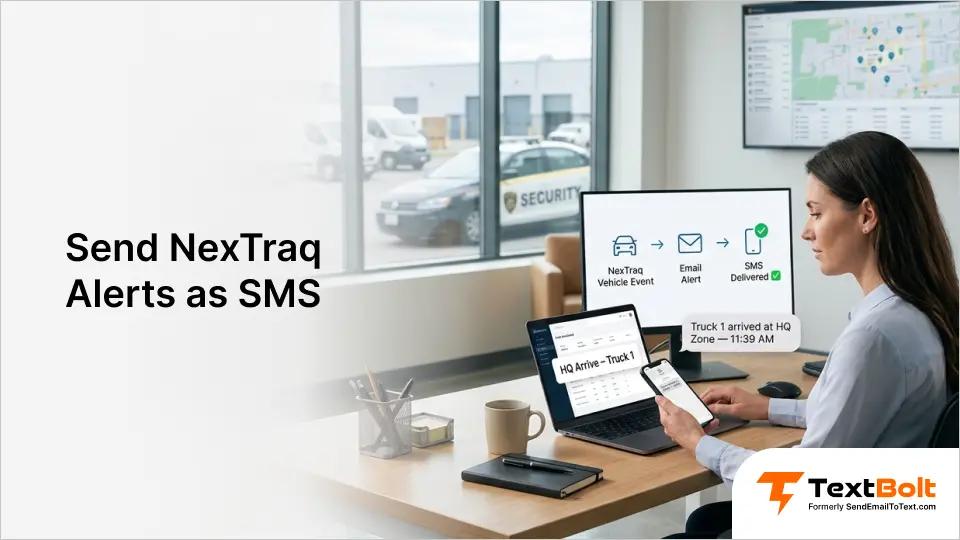
NexTraq (now Michelin Connected Fleet, powered by NexTraq) sends fleet alerts via email. TextBolt’s email-to-SMS gateway converts those alerts into real-time text messages for your drivers, dispatchers, and fleet managers. This guide walks through the complete setup, from configuring alerts at go.nextraq.com to receiving SMS notifications on your team’s phones in under 30 minutes.
What NexTraq Is
NexTraq (now Michelin Connected Fleet) is a GPS fleet tracking/telematics platform. Customers install hardware devices (“mobiles”) in their vehicles and manage them via the web dashboard at go.nextraq.com. The platform sends automated email alerts when fleet events occur.
Fleets already run this integration in production. See how one commercial security patrol in Florida used TextBolt to fix broken Michelin Connected Fleet SMS alerts after T-Mobile shut down its email-to-SMS gateway, restoring 98% delivery in under 30 minutes.
How the TextBolt Integration Works
NexTraq’s alert system sends emails to configurable recipients. TextBolt’s email-to-SMS gateway (@sendemailtotext.com) converts those emails into SMS messages. The customer adds TextBolt forwarding addresses as alert recipients in NexTraq.
Flow: Vehicle event triggers alert -> NexTraq sends email from no-reply@nextraq.com -> email arrives at +1{phone}@sendemailtotext.com -> Cloud Function processes it -> SMS sent via Twilio to the phone number.
Get Fleet Alerts on SMS
TextBolt turns NexTraq email alerts into real-time SMS for your drivers, dispatchers, and fleet managers. Standard plan: 1,000 SMS credits and up to 10 team members on one shared account.
NexTraq Alert Types (30+)
From the NexTraq Quick Start Guide:
| Alert Type | Description |
|---|---|
| Arrive Location | Vehicle arrives at a defined Location (geofence) |
| Depart Location | Vehicle departs a defined Location |
| Enter Zone | Vehicle enters a defined Zone |
| Exit Zone | Vehicle exits a defined Zone |
| Enter Zip Code | Vehicle enters a defined zip code |
| Exit Zip Code | Vehicle exits a defined zip code |
| Speed | Vehicle exceeds a user-defined maximum speed |
| Posted Speed | Vehicle exceeds the posted speed limit by a specified number |
| Idle | Vehicle exceeds a user-defined maximum idle time |
| Congregation | More than one vehicle stops within a defined number of feet from each other |
| Extended Stop | Vehicle exceeds maximum stop time |
| First Movement | First movement of the day or between specified hours |
| No Movement | No movement before a particular time |
| Motion | Motion outside of defined work day hours (after-hours use, potential theft) |
| Unexpected Stop | Vehicle stops somewhere other than a Location or Zone |
| High Temperature | Installed temperature probe exceeds a maximum |
| Driver Safety | Fast acceleration, hard braking, unsafe cornering |
| Driver ID | Driver hasn’t swiped key fob to DriverID sensor |
| Sensor Active/Inactive | Ignition on/off events |
| Tamper | Someone tampered with a NexTraq device |
| Low Device Battery | NexTraq hardware low battery |
| Vehicle Problem | Vehicle problem submitted |
| Hours Per Day/Week Worked | Employee exceeds max hours (NexTraq Connect) |
| Early/Late Clock In/Out | Time & Attendance alerts (NexTraq Connect) |
How to Set Up an Alert in NexTraq (Step by Step)
Setting up a NexTraq alert happens entirely inside the NexTraq admin console. The process is the same whether you’re flagging a speeding event, a geofence exit, harsh braking, excessive idling, or an upcoming maintenance date. Here are the steps to follow:
- Alerts tab -> hover -> click Create Alert
- Type: Select from dropdown (e.g. “Arrive Location”)
- Name: Give it a name (e.g. “HQ Arrive”)
- Enabled: Check the box
- Applies To: Choose
<All Mobiles>, a specific fleet, or specific vehicles - Location: Click “Select Location” to pick a geofenced area (for location-based alerts)
- Schedule:
- Days Active: 7 days/week (or select specific days)
- Times Active: 24 hr/day (or set specific hours)
- Email Subject: Choose format from dropdown:
- “Alert Name – Mobile Name” (most common)
- Other formats available
- Notification Method: Choose from dropdown:
- “E-Mail (PlainText)” — this is what works with TextBolt
- “E-Mail (HTML)” — also works but may produce longer SMS
- SMS (requires NexTraq SMS credits, separate from TextBolt)
- Email Recipients:
- Type email address in the text box
- Click the
>button to add - Multiple recipients supported
- For TextBolt: Enter
+1{recipientPhone}@sendemailtotext.com
- Click Save Alert
TextBolt-Specific Setup for NexTraq Customers
Once your NexTraq alert rule is working, the final step is swapping the generic email recipient for a TextBolt email-to-SMS address so the same alert arrives as a text. The rest of this section walks through the TextBolt side of the setup, from creating your account to confirming your first live alert.
Prerequisites (TextBolt side)
- Customer must have an active TextBolt account with approved KYC
- Customer must have a toll-free number assigned
- The email address NexTraq sends FROM (
no-reply@nextraq.com) must be added to the customer’s TextBolt account as an extra email inuser_extra_emails
Step-by-Step for New NexTraq Customers
In TextBolt (admin does this):
- Verify customer has active account, approved KYC, toll-free number
- Add
no-reply@nextraq.comto theiruser_extra_emails:INSERT INTO user_extra_emails (user_id, email) VALUES ({userId}, 'no-reply@nextraq.com'); - Verify with:
SELECT * FROM user_extra_emails WHERE user_id = {userId};
In NexTraq (customer does this):
- Go to Alerts tab -> Create Alert (or edit existing alert)
- Under Notification section:
- Set Notification Method to “E-Mail (PlainText)”
- In Email Recipients, add:
+1{phone}@sendemailtotext.com- Example:
+15551234567@sendemailtotext.com - IMPORTANT: Must include the
+1country code prefix
- Example:
- Click Save Alert
- Test: Trigger the alert condition and verify SMS arrives
Ready to Route NexTraq Alerts to Your Team’s Phones?
Stop losing critical fleet events in cluttered inboxes. TextBolt delivers every NexTraq alert as SMS in seconds, works with all 30+ alert types, and scales for multi-vehicle fleets.
Common Mistakes
| Mistake | Result | Fix |
| Email recipient without +1 (e.g. 5551234567@sendemailtotext.com) | Bounce email: “phone number is missing a country code” | Add +1 prefix: +15551234567@sendemailtotext.com |
| no-reply@nextraq.com not in user_extra_emails | Email silently dropped by Cloud Function (no sender match) | Admin adds it to user_extra_emails |
| Using “E-Mail (HTML)” notification method | Works but SMS may be longer (HTML tags stripped, extra whitespace) | Switch to “E-Mail (PlainText)” |
| Customer tries to add TextBolt as a “coworker” instead | Coworkers are for human users, not system emails | Add to user_extra_emails instead |
What NexTraq Alert Emails Look Like
Example NexTraq alert email:
From: Michelin Connected Fleet Alert Server <no-reply@nextraq.com>
To: Fleet Manager
Subject: HQ Arrive - Truck1

Truck1 (4675XXXXXX) arrived at HQ Zone.

Incident occurred:

04/23/2026 11:39:43 AM EDT
HQ Zone
123 Main St
Anytown, FL 33000
Latitude,Longitude: 26.XXXXXX,-80.XXXXXX

http://maps.google.com/maps?ll=...

This alert [HQ Arrive] was created by Fleet Admin on 08/06/2025.
This gets converted to SMS text. At ~350 characters, it would use 3 SMS credits (3 segments).
Credit Impact
NexTraq alerts can be verbose (location, coordinates, Google Maps link, timestamp). Typical alert = 200-400 characters = 2-3 SMS credits per alert.
For a customer monitoring fleet vehicles 24/7 with arrive/depart alerts on multiple vehicles, credit usage can be high:
- 10 vehicles x 4 trips/day x 2 alerts (arrive+depart) = 80 alerts/day = 160-240 credits/day
- Basic plan (500/mo) would be exhausted in 2-3 days
Recommendation for high-volume alert customers: Standard plan (1000/mo) minimum, or Professional (2500/mo) for large fleets.
NexTraq Support Contacts
- Customer Support: support@nextraq.com or 855-358-6178
- Platform login: go.nextraq.com
- Now branded as: Michelin Connected Fleet (connectedfleet.michelin.com)
- Quick Start Guide PDF: nextraq.com/wp-content/uploads/2018/04/NexTraq_New_User_Quick_Start_Guide.pdf
Frequently Asked Questions
Does This Work With My Existing NexTraq Subscription?
Yes. You don’t need a different NexTraq plan or any special add-on. TextBolt only changes where NexTraq sends its alert emails. Every rule, condition, and vehicle group you’ve already built stays exactly the same.
What Does This Cost On Top Of NexTraq?
You’ll need a TextBolt plan. The Standard plan starts at $49/month and includes 1,000 SMS credits plus multi-user access for up to 10 team members on one shared account, which is enough headroom for most small and mid-size fleets. Current pricing is on the TextBolt pricing page.
Will Drivers Need to Install an App or Learn a New Tool?
No. Alerts arrive as regular SMS texts on whatever phone the driver already uses. There’s no app, no login, and no onboarding. This is the main reason fleet managers prefer email-to-SMS over full messaging dashboards for on-the-road staff.
Can Drivers or Managers Reply to an Alert Text?
Yes. TextBolt supports two-way messaging, so a reply to the alert SMS flows back through your TextBolt account. This is useful when dispatch needs a quick driver confirmation without making a phone call.