
- What Are Internal Staff Notices?
- Why do School Staff Miss Important Notices?
- 3 Communication Channels for Staff Notices
- 3 Design Strategies for Staff Notices That Get Read
- How to Implement SMS Escalation: 3-Step Process
- 2 Ways to Measure Staff Notice Engagement
- Get Every Critical Notice to Your Entire Team with TextBolt
- Frequently Asked Questions
Stop Losing Staff to Inbox Overload
How to Make Sure Staff See Important School Notices Using Email-to-SMS

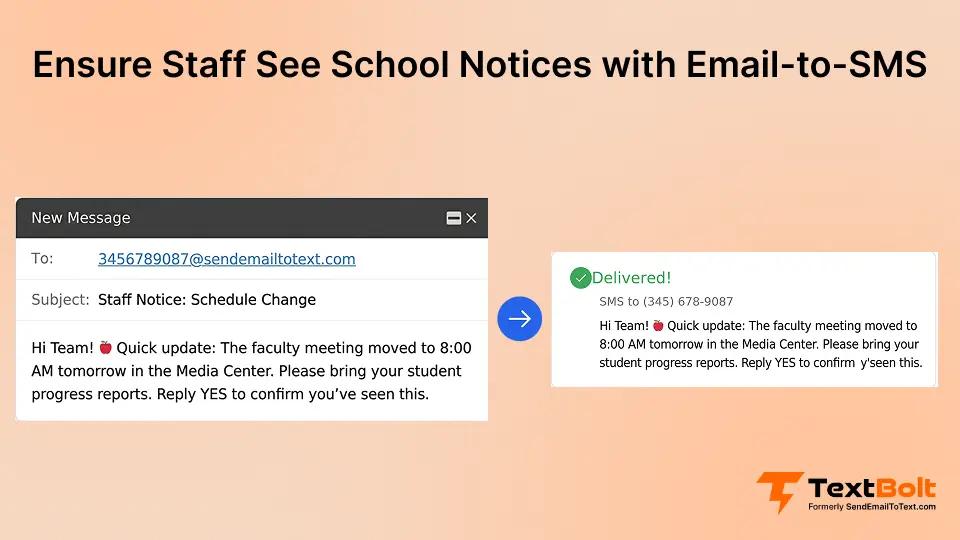
You send a critical staff notice about tomorrow’s schedule change. Three hours later, only half your team has read it. The rest are buried in emails, juggling classroom prep, parent communications, and administrative tasks. By the time they check their inbox, it’s too late.
Missed notices create chaos: confused staff, frustrated parents, and operational breakdowns that could have been avoided. The problem isn’t your team’s dedication. It’s information overload. Your staff receives dozens of emails daily, and urgent updates get lost in cluttered inboxes.
In this guide, you’ll learn:
- Why internal school notices get missed even when the email is sent correctly
- The most common failure points in staff communication workflows
- When email works well and when it does not
- How to identify notices that require SMS escalation, including emergency alerts
- A practical email-to-SMS escalation model for urgent staff notifications
- How to implement the system without adding new software or complexity
First, let’s look at what internal staff notices include.
What Are Internal Staff Notices?
Internal staff notices are messages sent to school employees about operational updates, policy changes, schedule modifications, or time-sensitive information that affects their daily responsibilities. These include emergency closures, last-minute schedule changes, safety alerts, mandatory training announcements, and facility updates.
Unlike general school communications sent to parents or students, staff notices require immediate awareness and often demand quick action. When your district announces a snow day at 5:30 AM, every staff member needs to know before leaving for work. When an unexpected maintenance issue closes the west wing, teachers need instant notification to relocate classes.
The challenge: research shows roughly 30% of employees ignore employer emails due to inbox overload. Your staff juggles classroom management, lesson planning, grading, parent emails, and administrative tasks. Even critical notices get lost in the noise. Traditional email works for routine updates, but time-sensitive information needs a more direct approach, which is where an email-to-text service creates an escalation layer for urgent notices.
Don’t Let Critical Updates Disappear Into Inboxes
Turn any Gmail or Outlook message into a text alert with up to 98% delivery rate. No apps required.
Why do School Staff Miss Important Notices?
Your staff isn’t ignoring messages on purpose. Three systemic communication barriers prevent urgent notices from reaching your team when it matters most.
1. Information Overload Creates Inbox Blindness
Your teachers receive 50 to 100+ emails daily. District announcements, parent questions, vendor updates, professional development invitations, and collaboration requests flood their inboxes. When everything looks urgent, nothing stands out. Critical notices about schedule changes or safety updates blend into the background noise, overlooked until it’s too late.
Studies show employees spend significant time managing email each day, often multiple hours just sorting through messages. Your critical announcement about tomorrow’s early dismissal competes with parent conference requests, curriculum updates, and district-wide newsletters. Even conscientious staff members miss urgent information simply because they can’t process every message in real time.
2. Generic Subject Lines Get Ignored
“Staff Update, Please Read” doesn’t convey urgency. Your team has learned that most “urgent” emails can wait until planning periods or after school. Without clear subject lines that differentiate truly critical notices from routine updates, staff default to triage mode, scanning headers and delaying anything that doesn’t immediately threaten their current task.
Consider your staff’s perspective during morning arrival. They’re managing bus duty, settling anxious students, taking attendance, and preparing for first period. An email with a vague subject line gets mentally filed under “deal with later.” By the time “later” arrives, your time-sensitive notice about the cafeteria closure or schedule adjustment is buried under 30 new messages.
3. Poor Timing Guarantees Low Visibility
You send a critical notice at 7:45 AM. Your staff is managing morning arrival, settling students, taking attendance, and preparing for first period. They won’t check email until lunch, five hours later. Time-sensitive information sent during instructional hours, bus duty, or after-school commitments sits unread when it matters most.
Teachers can’t refresh their inboxes between class transitions or during active instruction. Elementary teachers might go three to four hours without checking email. Middle and high school teachers have slightly more flexibility but still face limited availability during their teaching blocks. If your urgent notice arrives at 8:00 AM and the situation requires action by 10:00 AM, traditional email simply cannot guarantee timely awareness.
Common visibility killers:
- Messages sent during classroom instruction time
- Notices buried in mass “all-staff” email threads
- No clear deadline or action required in the subject line
- Important updates sent Friday afternoon, lost in weekend email pile
- Lack of channel differentiation, with everything sent via email regardless of urgency
- Reply-all chains that bury the original critical information
- Vague subject lines that don’t communicate importance
The result: You assume staff received your notice because you sent it. They assume it’s non-urgent because they see dozens of similar messages daily. The disconnect creates operational chaos that wastes administrative time, frustrates staff, and undermines your communication credibility.
3 Communication Channels for Staff Notices
No single channel works for every type of staff communication. The most effective approach uses email for routine updates, SMS for urgent notices, and persistent displays for ongoing information.
1. Email as Your Primary Channel, With Clear Limitations
Email works for detailed information, policy documentation, and non-urgent updates that staff can review during planning time. Use it for weekly newsletters, professional development opportunities, curriculum resources, and routine administrative updates that don’t require immediate action.
Your staff appreciates email for its searchable history, attachment support, and ability to reference detailed information. When you need to communicate new assessment procedures, updated parking policies, or curriculum mapping templates, email provides the documentation trail your team needs. They can bookmark important messages, forward relevant information to colleagues, and access details when they’re ready to focus.
Email strengths:
- Detailed information with formatting and attachments
- Searchable records for future reference
- Threaded conversations for ongoing discussions
- Documentation trail for policies and procedures
- No character limits for complex explanations
Email weaknesses:
- Low visibility during instructional hours
- Easy to miss in cluttered inboxes
- No guarantee of timely receipt
- Depends on the staff checking regularly
- Gets buried in high-volume periods
2. SMS Escalation for Urgent Notices
When your notice requires immediate awareness, such as schedule changes, emergency closures, safety alerts, or facility issues, email alone fails. SMS messages have significantly higher open rates than email and are checked throughout the day. Your staff checks text messages during breaks, between classes, and throughout the day, even when email goes unchecked for hours.
This is where TextBolt creates an escalation layer. You compose your urgent notice in Gmail or Outlook and send it to your staff’s @sendemailtotext.com addresses. TextBolt instantly converts your email into text messages that reach your entire team without downloading apps or learning new platforms. For documentation, you can also send the detailed information via regular email, so staff have both the immediate SMS alert and complete reference material in their inbox.
Consider this scenario: Your HVAC system fails at 1:30 PM, and afternoon temperatures will be unsafe by 3:00 PM. You need to implement early dismissal in 90 minutes. An email sent at 1:35 PM might not reach teachers until 2:45 PM when they check between classes. An SMS sent through email to text reaches everyone within minutes, giving them time to adjust class schedule changes, notify students, and coordinate with parents.
When to use SMS escalation:
- Emergency closures or delays
- Last-minute schedule changes affecting current or next-day operations
- Safety or security alerts requiring immediate awareness
- Facility issues affecting classroom locations, such as closures or relocations
- Time-sensitive deadlines less than four hours away
- Critical reminders for required meetings or mandatory training
- Weather-related decisions announced within 12 hours of school start
3. Intranet and Digital Signage for Ongoing Updates
Your staff lounge digital display or school intranet portal works for persistent information: lunch menus, upcoming events, ongoing construction updates, or weekly announcements. These channels keep information visible without creating notification fatigue, allowing staff to check when convenient without inbox clutter.
Digital signage in high-traffic areas like the staff lounge, main office, or copy room puts reminders in front of your team during natural breaks. Your upcoming professional development calendar, lunch duty rotation, or facilities maintenance schedule stays visible without requiring active notification management.
Effective multi-channel approach:
- Email: Routine updates, detailed policies, documentation, professional development
- SMS: Urgent notices requiring immediate awareness via email-to-SMS escalation
- Intranet and Signage: Persistent information, event calendars, ongoing updates, reference materials
The key is channel discipline. When you reserve SMS for genuinely urgent notices, your staff learns to prioritize text alerts. Overuse creates fatigue, and your team starts ignoring texts like they ignore routine emails. Underuse means missing critical information when emergencies actually occur.
Turn Urgent Emails Into Immediate Staff Alerts
Escalate critical notices to SMS directly from your email. No apps, no training. Reach your entire team instantly.
3 Design Strategies for Staff Notices That Get Read
Even the most urgent notice fails if your staff can’t quickly identify its importance and extract key information.
1. Clear, Action-Oriented Subject Lines
Your subject line determines whether staff open your message now or defer it for later. Vague headers like “Important Update” or “Please Read” don’t communicate urgency or content. Your team sees dozens of messages claiming importance every day. Without specific information in the subject line, they have no way to prioritize your notice over competing demands.
Weak subject lines:
- “Staff Notice, Read ASAP”
- “Important Information for All Teachers”
- “Update Regarding School Operations”
- “Please Review”
- “Action Required”
These tell staff nothing about the content, urgency level, or whether it applies to them. Your third-grade teacher doesn’t know if this affects her classroom, the entire building, or just high school staff.
Strong subject lines:
- “URGENT: West Wing Closed Today, Room Relocations Required”
- “ACTION REQUIRED: Submit Grades by 3 PM Today”
- “SCHEDULE CHANGE: Early Dismissal Tomorrow at 1:30 PM”
- “SAFETY ALERT: Main Entrance Closed Until 10 AM”
- “DEADLINE: Staff Meeting Attendance Sheet Due by Noon”
Notice the pattern: Urgency level, core information, required action, or timeline. Your staff can prioritize without opening the email. They know immediately whether this affects their current work, requires action, or can wait until planning time.
2. Scannable Formatting with Visual Hierarchy
Your staff won’t read dense paragraphs during their three-minute planning break between classes. Format notices for quick scanning with a clear visual hierarchy that lets them extract critical information in 30 seconds or less.
Effective formatting principles:
- Bold the critical information in the first two sentences
- Use bullet points for action items or key details
- Keep paragraphs to two or three sentences maximum
- Include a clear deadline or timeline near the top
- Put the most important information first, using inverted pyramid style
- Use white space to separate distinct pieces of information
- Add headers for longer notices to break up sections
Example transformation:
Before: “Due to unexpected maintenance issues discovered this morning during routine inspection of the west wing facilities, administration has made the decision to temporarily close classrooms 201 through 215 for the remainder of today while repairs are completed. Teachers assigned to these rooms should relocate to the library conference rooms for their afternoon classes. Please check your email for updated room assignments by 11:30 AM. We apologize for any inconvenience this may cause and appreciate your flexibility during this temporary situation.”
After:
WEST WING CLOSED TODAY, RELOCATE NOW
Immediate action required:
- Rooms 201 through 215 closed due to maintenance
- Afternoon classes: Move to the library conference rooms
- Check email by 11:30 AM for specific room assignments
- Timeline: Repairs complete by tomorrow morning
The “after” version takes 10 seconds to scan and extract all critical information. The “before” version requires careful reading to identify what staff need to do and when.
3. Targeted Messaging by Department or Role
Not every notice requires an all-staff blast. Segment your communications by grade level, department, or role. Your third-grade team doesn’t need notifications about high school athletic schedule changes. Your custodial staff doesn’t need curriculum updates. Your elementary teachers don’t need secondary exam schedule modifications.
Targeted messaging reduces inbox noise, increases relevance, and improves engagement. Staff learn to prioritize messages sent specifically to their role rather than filtering through building-wide announcements, hoping to find information that actually applies to them.
Segmentation strategies:
- Grade-level teams for grade-specific updates
- Department groups for subject-area information
- Role-based lists like administration, support staff, and specialists
- Building-specific groups for multi-building districts
- Combination groups like “Elementary Science Teachers” for specialized updates
When you send a message to “Third Grade Team” instead of “All Staff,” your third-grade teachers know it’s relevant before opening. They don’t waste time reading through information that doesn’t apply, and they don’t develop the habit of ignoring “All Staff” messages because most don’t affect them.
How to Implement SMS Escalation: 3-Step Process
Setting up an effective SMS escalation system requires strategic planning around when to use it, how to configure the technical workflow, and how to organize your contact lists.
Step 1: Determine When to Use Email Versus SMS
Not every staff notice warrants a text message. Reserve SMS for information that requires immediate awareness and action. Overuse creates alert fatigue, and your team starts ignoring text messages just like they ignore routine emails. Underuse means critical information gets lost in email overload.
Use SMS for:
- Emergency closures or delays announced within 12 hours of school start
- Immediate schedule changes affecting current or next-day operations
- Safety or security alerts requiring instant awareness
- Facility issues forcing classroom relocations or building evacuations
- Critical deadlines less than four hours away
- Required attendance at emergency meetings
- Severe weather decisions when staff safety is a factor
- Security situations requiring immediate staff awareness
Use email for:
- Weekly announcements and routine updates
- Professional development opportunities happening more than one week away
- Policy documentation and procedure changes
- Curriculum resources and teaching strategies
- Non-urgent administrative requests
- Monthly calendars and event schedules
- Detailed explanations that require reading and reference
The key is consistency. When your staff receives a text alert, they know it’s genuinely urgent and requires immediate attention. If you send routine reminders via SMS, they learn to ignore texts, and your escalation system loses effectiveness.
Step 2: Set Up Email-to-SMS Workflows
TextBolt lets you schedule SMS from Gmail using your existing email workflow. No new software to learn, no apps to download, no platform training for your team. You already know how to send an email. Now you can send text messages the exact same way.
How it works:
- Compose your urgent notice in Gmail or Outlook
- Address it to your staff phone numbers at @sendemailtotext.com
- Send the email, and TextBolt converts it to SMS instantly
- Your entire team receives the text alert on their phones
- Replies come back to your email inbox for two-way communication
Set up timeline:
Account creation usually takes 10 to 30 minutes. 10DLC approval, required for business texting, takes up to 48 hours. After approval, you’re ready to send. The initial setup requires business verification and compliance registration, but TextBolt handles all technical details. You provide basic information, and the system manages carrier approval automatically.
Practical example:
It’s 5:45 AM on Tuesday. Heavy snow started falling overnight, and road conditions are deteriorating. You need to notify all staff about a two-hour delay before they leave for work.
In Gmail, you compose: “Two-hour delay today due to snow. School starts at 10 AM instead of 8 AM. Bus schedules adjusted. Stay safe.”
You send this to your “All Staff” contact group at their @sendemailtotext.com addresses. Within minutes, every teacher, administrator, and support staff member receives the text alert. They adjust their morning schedules accordingly instead of driving to school in dangerous conditions for a start time that no longer applies.
Step 3: Build Staff Contact Lists by Priority Level
Create tiered contact groups in Google Contacts based on urgency levels and communication needs. This structure lets you escalate appropriately without over-notifying staff who don’t need specific information.
Tier 1, Critical Alerts (All Staff):
- Emergency closures and delays
- Building-wide safety alerts
- Severe weather decisions
- Facility emergencies affecting the entire campus
Use this sparingly. When everyone receives a text, it needs to genuinely affect everyone.
Tier 2, Department-Specific Groups:
- Grade level teams for schedule changes
- Subject departments for curriculum updates
- Building-specific teams for multi-campus districts
A third-grade field trip delay only needs the third-grade team, not the entire building. A high school athletic schedule change doesn’t require elementary staff notification.
Tier 3, Role-Specific Groups:
- Administration for leadership decisions
- Facilities team for maintenance coordination
- Support staff for operational updates
- Department heads for administrative communication
This structure prevents notification fatigue while ensuring critical information reaches everyone who needs it.
Best practice:
Include 10 users on your TextBolt account. All plans include multi-user access at no additional cost. Your principal, assistant principals, office manager, and department heads can all send urgent notices from their own email accounts without creating a single point of failure.
When your principal is out of the building, and an emergency occurs, your assistant principal can send alerts immediately without waiting for authorization or access credentials.
2 Ways to Measure Staff Notice Engagement
You can’t improve what you don’t measure. Track which notices your staff actually read and respond to, then adjust your communication strategy accordingly.
1. Track Delivery and Read Rates
Email platforms like Gmail and Outlook provide basic delivery confirmation, but read receipts are unreliable. Most staff disable them to avoid the perception that they must respond immediately to every message. You can see your email was delivered, but you can’t verify anyone actually read it.
SMS delivery tracking offers clearer visibility. TextBolt’s email-to-text dashboard shows delivery status for every message, updated two to five minutes after sending. You can verify which staff members received your urgent notice and troubleshoot delivery issues before they cause operational problems.
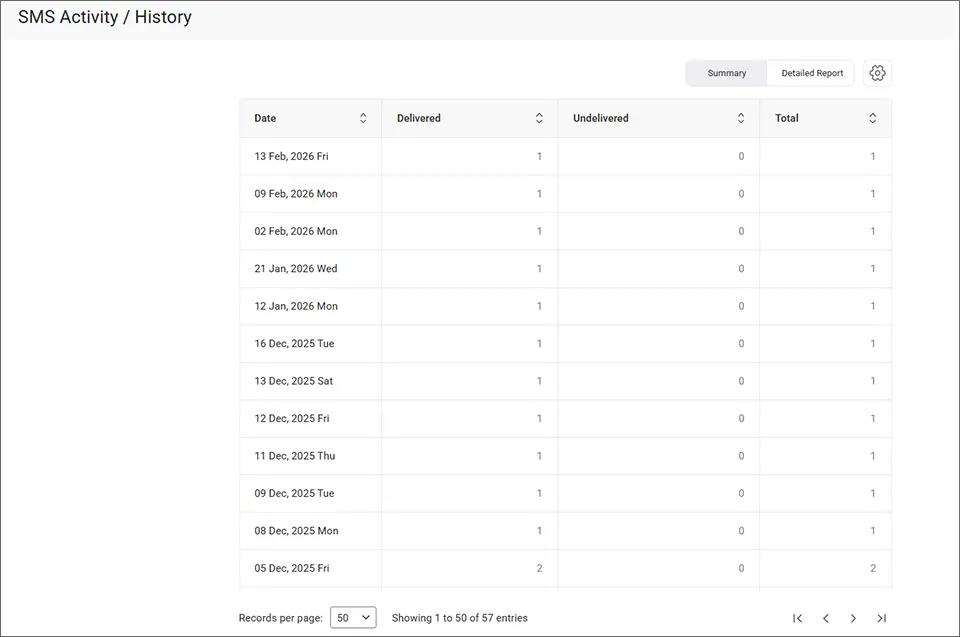
TextBolt’s SMS Activity dashboard gives you a date-by-date breakdown of delivered and undelivered messages, so you can spot gaps in staff coverage at a glance.
Metrics to monitor:
- Delivery rate by channel: email versus SMS
- Time between send and first response or acknowledgment
- Action completion rates for urgent notices requiring specific tasks
- Staff feedback on communication effectiveness through surveys
- Pattern analysis showing which notice types get ignored most frequently
Example tracking scenario:
You sent a critical notice at 2:00 PM about tomorrow’s early dismissal. By 2:30 PM, your SMS dashboard shows that 48 out of 50 staff members received the message. You can identify the two messages that didn’t deliver, check if their phone numbers are current, and follow up with alternative communication before they miss the information entirely.
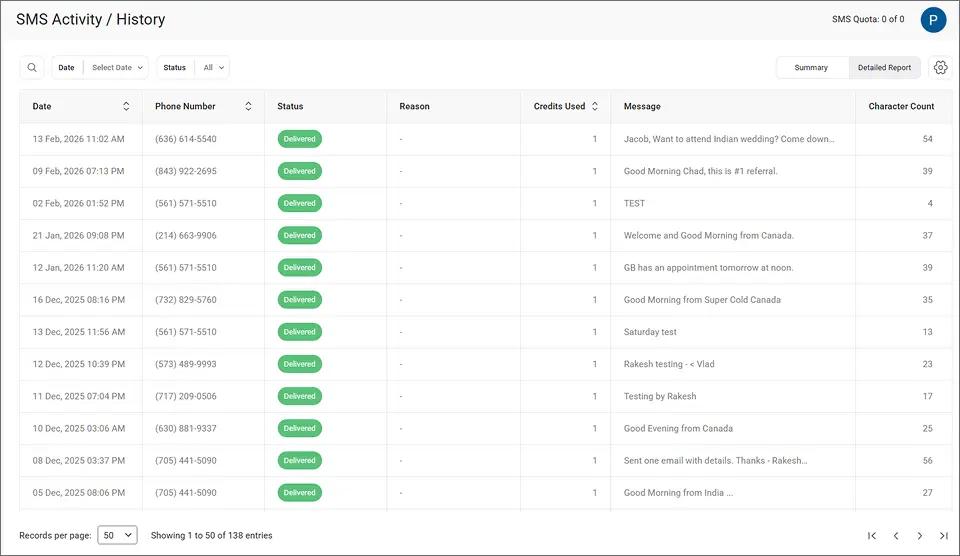
The Detailed Report view in TextBolt logs every message with its delivery status, recipient number, and failure reason, making it easy to identify exactly who didn’t receive a notice and why.
2. Gather Feedback on Communication Effectiveness
Survey your staff quarterly about communication preferences and pain points. Don’t assume you know what works. Ask directly and adjust based on their actual experience, not your intentions.
Key questions to ask:
- Which channels do you check most frequently during the school day?
- How often do you miss critical notices sent via email?
- What time of day is best for non-urgent announcements?
- Are text alerts helpful or intrusive for urgent notices?
- Do subject lines accurately reflect message urgency?
- Would you prefer daily digest emails instead of individual messages for routine updates?
Use this feedback to refine your multi-channel strategy. Some staff prefer morning text alerts for schedule changes. Others find them disruptive during arrival routines when they’re managing students. You might discover that your 3:30 PM “end of day” emails never get read because staff leaves by 3:45 PM, while 2:00 PM messages get checked during planning periods.
Key principle:
The goal isn’t maximum messages. It’s maximum visibility for minimum interruption. Find the balance that keeps your team informed without creating notification fatigue or workflow disruption. Your communication strategy should support your staff’s work, not add to their administrative burden.
Get Every Critical Notice to Your Entire Team with TextBolt
Your staff wants to stay informed. They don’t want to miss critical notices about schedule changes, safety alerts, or emergency closures. The problem isn’t their commitment. It’s the communication channel. Email alone can’t guarantee visibility for time-sensitive information when your team spends their days teaching students, not monitoring inboxes.
A multi-channel approach solves this. Reserve email for detailed updates and routine information that staff can review during planning time. Escalate urgent notices to SMS when immediate awareness matters. Your team learns to prioritize text alerts because you only use them for genuinely critical information, and a purpose-built SMS system for schools makes that escalation effortless.
Ensure Every Staff Member Sees Your Next Critical Notice
Turn your Gmail or Outlook into an SMS alert system. Start your free trial with 10 message credits included.
Frequently Asked Questions
How can schools improve internal staff communication?
Use a multi-channel approach that matches urgency to delivery method. Email works for routine updates and detailed information. SMS handles urgent notices requiring immediate awareness. Intranet portals or digital signage maintain persistent information like event calendars. Target messages by department or role to reduce inbox noise and increase relevance for recipients.
What is the best way to send urgent messages to staff?
SMS provides the highest visibility for time-sensitive notices. Email-to-SMS services convert regular emails into text messages, ensuring urgent updates reach staff immediately without requiring new apps or platforms. Reserve text alerts for genuinely critical information to avoid notification fatigue while maintaining effectiveness when it matters most.
How do you get staff to read important school emails?
Use clear, action-oriented subject lines that communicate urgency and content upfront. Format messages for quick scanning with bold text, bullet points, and short paragraphs. Send non-urgent emails during planning periods when staff actually check their inboxes. For truly critical notices, escalate to SMS rather than hoping email gets read in time.
How many staff members typically miss internal email notices?
Research shows approximately 30% of employees ignore employer emails due to information overload. School staff face even higher email volume from parents, administrators, vendors, and colleagues. Critical notices get buried in cluttered inboxes, especially when sent during instructional hours when teachers cannot check email regularly throughout the day.
What should be communicated to staff via text versus email?
Use SMS for emergency closures, immediate schedule changes, safety alerts, facility issues, and time-sensitive deadlines under four hours. Use email for weekly announcements, policy documentation, professional development opportunities, curriculum resources, and routine administrative updates. Reserve text alerts for information requiring instant awareness and action to maintain effectiveness.
Can multiple administrators send staff alerts from the same system?
Yes. Email-to-SMS services like TextBolt include multi-user access on all plans, with 10 user accounts total. Your principal, assistant principals, office manager, and department heads can all send urgent notices from their own email accounts using the same school phone number. No single point of failure for critical communications.