
- What Is Email-to-SMS for Class Schedules?
- Why Do Students Keep Missing Class Schedule Emails?
- Why Does SMS Reach Students When Email Doesn’t?
- How to Set Up Email-to-SMS Class Schedule Reminders
- What Advanced Features Help Streamline Class Scheduling?
- Best Practices for Timing Class Schedule Notifications
- How Does Email-to-SMS Work With Canvas, Blackboard, and Existing Systems?
- What Are the Common Challenges With Class Schedule Notifications (and How Do You Solve Them)?
- Challenge 1: “Students Don’t Check Email Regularly”
- Challenge 2: “Last-Minute Changes Don’t Reach Students in Time”
- Challenge 3: “Managing Contact Lists for Multiple Classes Is Tedious”
- Challenge 4: “Students Miss Critical Emails During Busy Exam Periods”
- Challenge 5: “Our IT Department Doesn’t Support Adding New Apps”
- Challenge 6: “What If a Student Changes Their Phone Number Mid-Semester?”
- How Do You Make Class Schedules Impossible to Miss?
- Frequently Asked Questions
Never Let Students Miss a Schedule Change
How Email-to-SMS Ensures Students Never Miss Class Schedule Changes

Students juggle classes across Canvas, Blackboard, and multiple email threads. Schedule changes happen mid-semester. A lab session moves to a different building. An exam time shifts by two hours. A guest lecturer replaces the regular professor.
According to a research paper published by Taylor & Francis in Perspectives: Policy and Practice in Higher Education, students filter emails aggressively — they read messages related to their modules but rarely open mass communications from unknown senders. Staff described the situation as communication “overload,” where the sheer volume from all sources made important messages unmanageable.
This guide shows you how to layer SMS on top of your existing email communication using an email-to-SMS service built for schools. Students get schedule updates as text messages on the device they actually check. No new apps for them to download. No new platform for you to learn. Just reliable memory triggers that land where students are already looking.
For schools managing emergency communications alongside schedule updates, email-to-SMS for emergency alerts handles time-sensitive notifications across your entire system.
And students miss it. Not because they don’t care, but because they don’t check email. Notifications get buried under assignment reminders, campus event announcements, and promotional emails from the bookstore. By the time they realize there’s a schedule change, they’ve already missed the class.
This guide shows you how to layer SMS on top of your existing email communication. Students get schedule updates as text messages on the device they actually check. No new apps for them to download. No new platform for you to learn. Just reliable memory triggers that land where students are already looking.
What Is Email-to-SMS for Class Schedules?
Email-to-SMS converts your class schedule emails into text messages that land on students’ phones instantly. You keep using your existing email infrastructure. No new apps, no platform changes, no separate login.
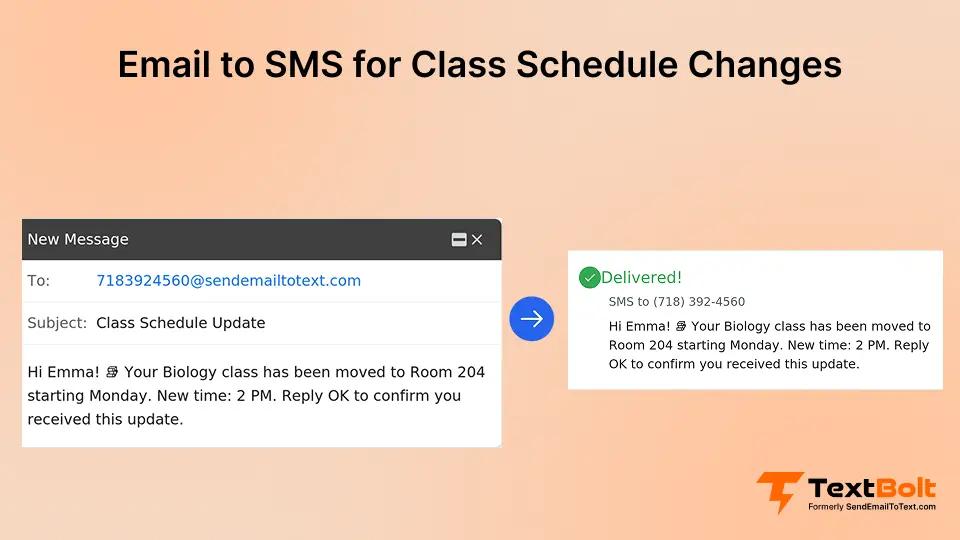
Here’s how it works: You compose a schedule email in Gmail or Outlook as usual. Address it to student phone numbers using the format [phonenumber]@sendemailtotext.com. Hit send. TextBolt converts that email to SMS and delivers it to students’ phones quickly.
When you email your Chemistry 101 students that Thursday’s lab moved from Room 204 to Room 310, all 45 students receive a text message right away. Even those who haven’t checked their email in three days get the update immediately. They see it on their lock screen, read it during their break between classes, and show up at the right room.
The email still contains all the details (updated syllabus link, new safety requirements for the relocated lab). The text message is the alert that makes students actually open and read that email.
Want to schedule notifications in advance? Learn how to schedule SMS from Gmail so you can compose Sunday night and automatically send Monday morning alerts.
Stop Chasing Students Through Email – Text Them Instead
Send class schedule updates from your existing email. No new platform to learn. Students get instant SMS notifications they’ll actually see. Setup takes 10-30 minutes, with 10DLC approval within 48 hours.
Why Do Students Keep Missing Class Schedule Emails?
Students don’t ignore schedule changes on purpose. They’re drowning in communication overload.
1. Schedule Emails Get Buried Under 100+ Unread Messages
Your average college student has 100+ unread emails at any given time. University housing announcements, club meeting invites, financial aid reminders, and assignment notifications all compete for attention.
Your schedule change email lands in that pile. It gets marked as “read” when they scan their inbox without actually reading it. Or it gets buried below 15 newer messages before they ever see it.
2. Students Monitor Five Platforms and Miss Updates on All of Them
Students check Canvas for assignments. They check Blackboard for grades. They check their email for administrative announcements. They check GroupMe for group project coordination.
They check Discord for study groups. That’s five different places to monitor for important information. Your schedule update could be in any of them, so students often miss it in all of them.
3. Notification Overload Trains Students to Ignore Legitimate Alerts
App notifications are muted because students got tired of 30 alerts per day. Email previews get ignored because 90% of them are promotional or low-priority. Push notifications blend into background noise.
By the time students develop these coping mechanisms, legitimate urgent updates get filtered out along with the spam.
Why Does SMS Reach Students When Email Doesn’t?
Students may not check their email for days. They might not log into Canvas until an assignment is due. But they check text messages within minutes of receiving them. SMS achieves up to 98% delivery rates* because texts land on the device students keep within arm’s reach at all times.
A comprehensive review of SMS programs across multiple universities found that schools using text messaging saw measurable improvements in student engagement and retention. Georgia State’s chatbot texting service led to higher completion rates for enrollment steps, and a UK adult education program reduced dropout rates by 36% through weekly text reminders. Despite 77% of college students preferring text communication, most institutions still rely on email as their primary outreach channel.
1. Texts Appear on Lock Screens, Not Inside Crowded Inboxes
A schedule change email sits in an inbox with 100+ unread messages. Students have to open the email app, scroll past university housing announcements and bookstore promotions, and find your message. Most don’t. A text message appears directly on their lock screen the moment it arrives. They see it without opening anything, without scrolling, without logging in. The notification is the message.
2. Students Keep Texting Notifications On Because They Use SMS for Personal Conversations
Students mute Canvas to stop getting assignment alerts every hour. They silence Blackboard email notifications because they get 15 per week. They turn off push notifications from campus apps because 90% are low-priority. But they never mute their messaging app. That’s where friends text them, where family reaches them, where group plans happen. Your schedule update arrives through the same channel they already keep open and active. It doesn’t get filtered, muted, or buried — it lands alongside the conversations they’re already checking every few minutes.
3. A Text Gets Read in Minutes, an Email Sits Unread for Days
A room change emailed at 1:30 PM gets read at 9:00 PM — seven hours after the class already happened. The same room change texted at 1:30 PM gets read while the student is walking to class. They adjust their route and show up at the right building. That gap between minutes and hours is the difference between a student who makes it to class and one who finds an empty room.
The same principles that work for boosting customer engagement via SMS make schedule notifications effective for students. SMS delivers when other channels get ignored. The same strategy also powers email-to-SMS for parents, ensuring time-sensitive school alerts reach families immediately.
How to Set Up Email-to-SMS Class Schedule Reminders
You already know how to send an email. That means you already know how to send schedule updates via SMS.
Step 1: Create Your Schedule Email
Write your class schedule update as a normal email. Room changes, time adjustments, cancellations, or any other schedule information you’d typically send to your class.
Keep messages concise. Under 160 characters fit in one SMS segment. Longer messages automatically split into multiple segments, which still work fine but use more message credits.
Example: “Thursday’s lab moved to Room 310 in the Science Building. Same time (2 pm-4 pm). Bring safety goggles.”
That’s 106 characters and includes everything students need.
Step 2: Address to Student Phone Numbers
Format student phone numbers as email addresses: [10-digit-number]@sendemailtotext.com
For example: 5551234567@sendemailtotext.com
If you’re sending to multiple students, list all their numbers in the “To” field, or use a Google Contacts group (more on that below).
Step 3: Send from Gmail or Outlook as Usual
No new login. No separate platform. No dashboard to learn.
Click send from your regular email client. Gmail, Outlook, Apple Mail, or any email system you already use works with TextBolt. The email routing and SMS conversion happen automatically in the background.
Step 4: Students Get Text Notifications
Your students receive a standard SMS on their phones within seconds. It looks like any other text message. They can read it on their lock screen, in their messaging app, or wherever they normally check texts.
If they reply to the text message, that reply comes back to your email inbox as a standard email. You can continue the conversation without switching tools. “Is the lab still 2 hours long or shorter in the new room?” comes back as an email. You reply via email. They receive your answer via SMS.
What Advanced Features Help Streamline Class Scheduling?
1. Google Contacts Groups for Class Rosters
Create a Google Contacts group for each class section you teach. Add all student phone numbers (formatted as @sendemailtotext.com addresses) to the appropriate group. Name it something clear, like “CHEM-101-Section-A” or “Fall-2026-Physics-Lab-Tuesday.”
Now, when you need to send a schedule update to the entire class, you compose one email. Address it to the group name. Send it. Every student receives an individual SMS notification.
One email sent = 45 text messages delivered. Same effort as emailing one person.
2. Schedule Send for Advance Reminders
Use Gmail’s built-in Schedule Send feature to compose notifications in advance. Sunday evening, you write the schedule reminder for Monday morning’s class change. Set it to send on Monday at 7:00 AM. Gmail sends it at that exact time. TextBolt converts it to SMS. Students get the alert before they leave for campus.
You can schedule days, weeks, or even months ahead. Compose your entire semester’s recurring reminders in one sitting if you want. Set them to send at optimal times. Forget about it until the notifications go out automatically.
3. Email Rules for Automated Triggers
Set up Gmail filters to automatically trigger SMS for certain announcement types. When you receive an email from your department coordinator with “SCHEDULE CHANGE” in the subject line, Gmail can automatically forward it to your class roster as SMS. Students get instant notification without you manually forwarding it.
It works particularly well for multi-section courses where one coordinator manages schedule changes for all sections.
Need the fundamental setup process? Check out this guide on how to send email to text walks through the complete technical setup from account creation to your first message.
Best Practices for Timing Class Schedule Notifications
When you send matters as much as what you send. Here’s how to time-schedule notifications for maximum effectiveness.
1. Immediate Alerts (Send Right Away)
Last-Minute Room Changes
The professor sends the notification 30 minutes before class starts. Students walking toward the original building see the text, adjust their route, and arrive at the correct location. Without SMS, those students show up to an empty classroom and waste 15 minutes trying to figure out where the class moved.
Instructor Illness or Class Cancellations
You wake up sick at 6:00 AM. Your 8:00 AM class needs to be canceled. Send the email-to-SMS immediately to cancel the class. Students who were already getting ready for class see the notification, adjust their morning plans, and don’t waste the commute to campus.
Emergency Schedule Adjustments
Weather event forces early campus closure. Building evacuation requires relocating your afternoon class. A fire alarm means your exam moves to a different building. These situations demand immediate communication. Email-to-SMS gets the word out instantly, which is why many schools use it for emergency SMS alerts to students whether a class shifts online or cancelled.
2. Advance Reminders (24-48 Hours Before)
Weekly Schedule Updates
Sunday evening at 8:00 PM, send next week’s schedule overview. “Week 8: Monday’s lecture covers Chapter 12. Wednesday’s lab moved to Room 405. Friday’s guest lecturer from the EPA.” Students see it Sunday night, plan their week accordingly, and show up prepared.
Exam Schedule Changes
Give students at least 48 hours’ notice when exam times or locations change. They need time to adjust study plans, rearrange work schedules, or coordinate with other professors about exam conflicts. Send the notification as soon as the change is confirmed, even if it’s two weeks in advance. For a deeper look at handling exam-specific notifications, see how schools use email-to-SMS for exam schedule change alerts.
Office Hours Adjustments
Your regular Tuesday office hours shift to Wednesday this week due to a conference. Send the notification on Monday evening. Students who plan to come on Tuesday see the change, adjust their plans, and show up on the correct day.
3. Recurring Patterns (Use Scheduled Emails)
Friday Afternoon: Next Week’s Lab Schedule
Every Friday at 3:00 PM, students get next week’s lab schedule. Same time every week. They expect it. They check for it. Consistency builds reliable communication patterns.
Sunday Evening: Monday Class Reminders
“Tomorrow’s CHEM-101: Quiz on Chapter 5, bring calculators, room is Science Building 204.” Scheduled to send every Sunday at 7:00 PM. Students start their week knowing exactly what to expect on Monday morning.
Day Before: Guest Lecturer Announcements
Thursday afternoon notification for Friday’s guest lecturer. Includes the speaker’s name, their background, and what topics they’ll cover. Students show up more engaged because they had time to prepare relevant questions.
4. Event-Based Notifications
Registration Period Opening/Closing
“Spring 2027 registration opens tomorrow at 8:00 AM. Register early for the best section options.” Students who see this text are more likely to register during the priority window and get their preferred class times.
Add/Drop Deadline Reminders
“Last day to drop classes without a W grade is Friday, March 15.” Sent one week before the deadline, then again 24 hours before. Students who were on the fence about dropping a class get the reminder in time to make that decision.
Final Exam Schedule Distribution
“Final exam schedules are now available. Check Canvas for your specific times and locations.” Text notification prompts students to actually go check Canvas, rather than waiting until the week before finals to discover scheduling conflicts.
5. Frequency Balance
Don’t Over-Notify
Limit SMS to essential schedule changes. If students get five texts per day from you, they’ll start ignoring them. SMS should be reserved for information they actually need to act on. Routine weekly schedules can stay in an email. Emergency room changes need SMS.
Don’t Under-Communicate
Critical updates must trigger SMS.
- Missed exam time equals a serious consequence.
- Failure to attend a lab equals zero for that assignment.
- A room change that causes students to miss class entirely equals unnecessary grade impact.
These situations demand text notification.
Find the balance: Important and time-sensitive information gets SMS. Routine announcements and detailed explanations stay in the email with the full syllabus links, assignment details, and supporting documents.
Your Students Already Check Their Texts – Meet Them There
Layer SMS reminders on your existing email workflow. No apps for students to download. No platform for staff to learn. Text notifications that actually reach students when schedule changes happen.
How Does Email-to-SMS Work With Canvas, Blackboard, and Existing Systems?
Email-to-SMS doesn’t replace your current systems. It makes them more effective by ensuring students actually see the information you’re already sending.
1. It Layers on Existing Workflows
You keep sending from Gmail or Outlook. No new login, no separate dashboard to learn, no platform migration. Your department coordinator can send from their email account. You can send from your account, while the teaching assistants can send from their accounts. Everyone uses the tools they already know.
TextBolt handles the email-to-SMS conversion in the background. You compose a normal email. Address it to the student phone numbers. Send it. Students receive SMS. That’s the entire workflow.
2. It Doesn’t Replace Email
Full schedule details with syllabi links, assignment instructions, and calendar attachments still go in the email. A text message can’t include a 10-page revised syllabus or a complex course calendar. Email handles the comprehensive information. SMS is the alert that makes students actually check that email.
“Updated syllabus posted. Check your email for Week 8-12 schedule changes and new final exam date.” That text message drives students to open the email with all the details. Without the SMS alert, that email sits unread for three days, and students miss the final exam date change.
3. It Works With LMS Platforms
Post your full announcement in Canvas or Blackboard as usual. Include all the detailed information, embedded links, and file attachments that the LMS handles well. Then send a quick email-to-SMS: “New schedule announcement posted in Canvas. Check before Thursday’s class.”
Students get the text, know how to log into Canvas, and actually read the announcement. The LMS remains your central repository for course information. SMS becomes the notification system that drives students to check the LMS when new information appears.
4. It Extends Reach Beyond Platform Notifications
Students who mute Canvas notifications to avoid constant assignment reminders will still see your text message. Students who ignore Blackboard emails because they get 15 per week will still check the SMS about the room change. Students who rarely log into the LMS except when assignments are due will still receive critical schedule updates.
You reach students where they actually are, regardless of their LMS notification settings or email checking habits.
5. Team Collaboration Without Dependencies
Multiple staff members can send schedule updates. Department secretary handles room changes for all sections. Teaching assistants send lab schedule updates. Professors send exam schedule changes. Each person sends from their own email account.
Not dependent on one person’s phone. Not dependent on one person’s access to a shared platform. Not dependent on one person remembering to log into a separate dashboard.
All TextBolt plans include 10 user accounts with no per-user fees. Your entire teaching team can send schedule notifications without purchasing additional licenses or managing complex permission settings.
It matters when your TA handles Monday/Wednesday labs, you handle Friday lectures, and the department coordinator manages room assignments. Everyone can communicate schedule changes directly without routing everything through one bottleneck person.
Business messaging platforms that support team collaboration prevent the single-point-of-failure problem that breaks communication when one person is unavailable.
What Are the Common Challenges With Class Schedule Notifications (and How Do You Solve Them)?
Here are the obstacles you’ll face when trying to keep students informed about schedule changes, and how email-to-SMS solves each one.
Challenge 1: “Students Don’t Check Email Regularly”
Many students check their email once daily at most. Some check every few days. A handful of people check only when they remember they’re waiting for something specific. Your schedule change email sent Tuesday morning might not get seen until Thursday afternoon, after the class already happened.
Solution: SMS reaches them on the device they actually use. Text messages achieve up to 98% delivery rates* compared to emails that sit unread for days. Students check texts within minutes of receiving them. Your Tuesday morning schedule change gets seen Tuesday morning, when it’s still useful.
*Delivery rates vary based on carrier policies, message content, and compliance factors.
Challenge 2: “Last-Minute Changes Don’t Reach Students in Time”
You send an email at 1:30 PM that the 2:00 PM class moved to a different building. Students who check email, once in the morning and once in the evening never see it. They show up to the wrong building at 2:00 PM, find an empty classroom, and waste 20 minutes trying to figure out what happened.
Solution: Send your schedule email as usual from Gmail or Outlook. Students get a text right away. They’re walking to class when the notification arrives on their phone. They see it, adjust their route, and arrive at the correct building. No wasted time, no missed class, no frustration.
Challenge 3: “Managing Contact Lists for Multiple Classes Is Tedious”
You teach three sections of Chemistry 101 plus one advanced seminar. That’s 130 students total across four different class rosters. Sending individual emails to 130 people, or even copying and pasting 130 phone numbers every time you need to send a schedule update, turns a simple communication task into a 30-minute administrative burden. The complexity increases further for districts overseeing multiple campuses, where organized multi-branch school communication prevents cross-location confusion.
Solution: Create Google Contacts groups organized by class section.
In this scenario:
- CHEM-101-Section-A gets 45 phone numbers.
- CHEM-101-Section-B gets 43 phone numbers.
- CHEM-101-Section-C gets 38 phone numbers.
- Advanced-Seminar gets 4 phone numbers.
Send one email to CHEM-101-Section-A. All 45 students get individual SMS notifications. One email sent equals 45 texts delivered. Takes the same amount of time as emailing one person.
Challenge 4: “Students Miss Critical Emails During Busy Exam Periods”
Finals week. Students are juggling exam schedules for five different classes, final projects, moving out of dorms, and planning for next semester. Your email that the final exam moved from Tuesday, 2:00 PM to Wednesday, 10:00 AM gets buried under 40 other finals-week emails.
Solution: SMS cuts through the noise when it matters most. That exam time change as a text message gets seen, even during finals week chaos. Students show up to the exam at the correct time because the notification reached them on the device they check, even when overwhelmed and stressed.
Challenge 5: “Our IT Department Doesn’t Support Adding New Apps”
Your school’s IT infrastructure has strict policies about which communication platforms receive official support. Getting approval for a new system requires committee review, security audits, and months of the procurement process. You need to communicate schedule changes this semester, not next year.
Solution: Email-to-SMS requires zero IT support. You’re just sending emails. That’s already approved, already supported, already part of your existing workflow. TextBolt handles the SMS conversion on its end. No server setup on campus, no API integration with university systems, no new software to install on school computers.
Challenge 6: “What If a Student Changes Their Phone Number Mid-Semester?”
Students switch carriers, get new phone plans, or change numbers for privacy reasons partway through the semester. If their phone number is hardcoded into your system or buried in a complex contact management database, updating it becomes an administrative headache.
Solution: Update their contact information in your Gmail or Google Contacts. Change their phone number from 555-123-4567@sendemailtotext.com to 555-987-6543@sendemailtotext.com. Next scheduled notification automatically goes to their new number. No separate system to update, no support ticket to file, no complex permission changes.
Takes 30 seconds to update one student’s phone number. Same process you’d use to update their email address.
How Do You Make Class Schedules Impossible to Miss?
Students will keep forgetting to check their email. That’s not changing anytime soon. What can change is how you reach them.
Layer SMS on top of your existing email communication to create a reliable memory trigger that lands on the device students actually use. No new apps for them to download. No new platform for you to learn. No complex integration with Canvas or Blackboard. Just text messages that get seen when schedule changes happen.
You already send schedule updates via email. You already have student phone numbers in your roster. You already use Gmail or Outlook. Email-to-SMS connects those three pieces you already have into a communication system that actually reaches students.
TextBolt sends class schedule notifications from your existing Gmail or Outlook. Setup takes 10-30 minutes with 10DLC approval within 48 hours. Your first 7 days include 10 free message credits. Learn more about our email-to-text service.
Frequently Asked Questions
How Do Students Opt In to Receive Class Schedule Texts?
Students provide their phone numbers when registering for your class, just like they provide email addresses. Include a line in your syllabus or first-day handout: “Class schedule updates and important announcements will be sent via text message. Please confirm your mobile number is accurate in the course roster.” Send an initial test message during the first week so students know what to expect.
What Happens If a Student Changes Their Phone Number Mid-Semester?
Update their contact information in your email address book or Google Contacts. Change the phone number in their contact entry from the old number to the new number (formatted as [10-digit-number]@sendemailtotext.com). The next scheduled notification will automatically go to their new number with no additional setup required.
Can I Send Schedule Updates to an Entire Class Roster at Once?
Yes. Create a Google Contacts group for each class section. Add all student phone numbers (formatted as @sendemailtotext.com addresses) to the appropriate group. Send one email to the group address, and every student receives an individual SMS notification. One email sent can deliver text messages to 45 students simultaneously.
How Far in Advance Can I Schedule Class Reminders?
Use Gmail’s Schedule Send feature to schedule emails days, weeks, or months ahead. The SMS will be delivered at your scheduled time automatically without any additional action needed. You can compose your entire semester’s recurring reminders in one session and schedule them to send at optimal times throughout the term.
What If My School Uses Canvas or Blackboard for Announcements?
Email-to-SMS layers on top of existing systems. Continue posting full announcements with detailed information in Canvas or Blackboard. Then send a quick text alert that there’s a new announcement students should check. The LMS remains your central repository for course materials. SMS becomes the notification that drives students to actually log in and read what you posted.
Are There Character Limits for Class Schedule Text Messages?
Standard SMS supports 160 characters per message segment. Longer messages automatically split into multiple segments, with each segment using one message credit. Most class schedule updates fit easily within one segment: “Thursday’s lab moved to Room 310” is 34 characters. “Final exam rescheduled to Wednesday, May 15, 10:00 AM, same location” is 70 characters. Both fit in a single SMS.