
- How Urgent can Online Class Links be?
- Why do Students Miss Online Class Links Sent Through Email?
- How does Email-to-SMS Improve Link Visibility?
- How to Send Class Links via Email-to-SMS?
- What are the Best Practices for Text-Based Link Delivery?
- What Else Can You Use Email-to-SMS For in Education?
- Use TextBolt to Deliver Class Links Your Students Actually See
- Frequently Asked Questions
Stop Losing Students to Buried Email Links
How to Ensure Students See Online Class Links Through Email-to-SMS

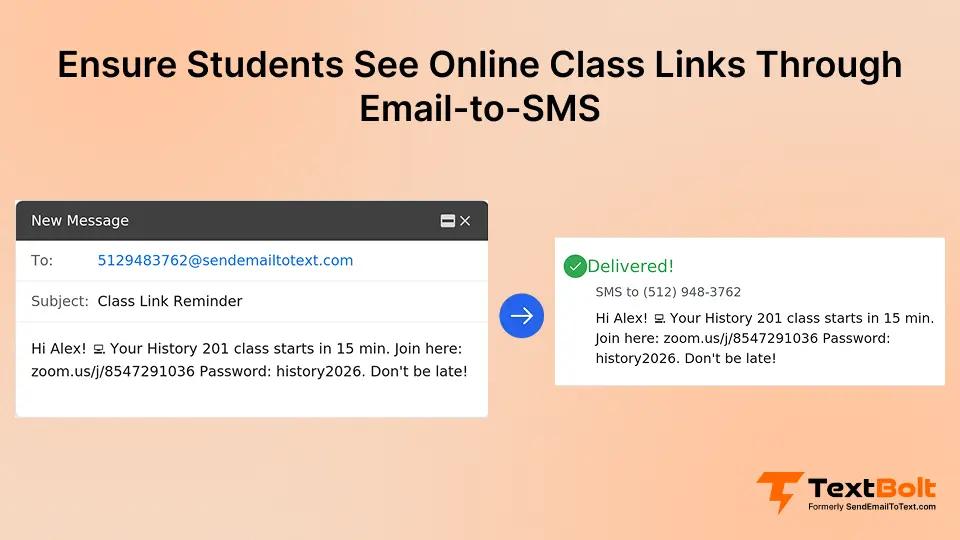
You send class link reminders. Your students still miss live sessions. The problem is not their attention span or lack of interest. The problem is visibility.
When you send online class links through email, those messages get buried under 50 other emails your students receive daily. Notifications are silenced, and inboxes overflow. By the time your students check their email, the class already started.
Text messages solve this visibility problem. When you send class links via email to text gateway, your students see them within minutes, directly on the lock screens they check constantly.
No new apps to download. No complex platform for you or your staff to learn. Just instant delivery to where students actually look.
How Urgent can Online Class Links be?
Online class links are URLs that connect your students to virtual classroom platforms like Zoom, Google Meet, or Microsoft Teams. You send these links for scheduled sessions, makeup classes, office hours, guest lectures, and any remote learning activities your students need to attend.
The core problem is simple. You send the link via email. Your student has 73 unread messages. They check their inbox once before bed, hours after your 2 PM session has already ended.
The link you carefully scheduled to send 30 minutes early got buried under school announcements, club newsletters, promotional emails, and automated notifications. Your student never saw it.
This visibility gap creates real consequences. Lost learning time. Attendance marks. Frustrated educators who wonder why reminders are not working.
The solution is not sending more emails. The solution is sending those links where your students actually check for time-sensitive information: their text messages.
Never Let Another Class Link Get Lost in Email
TextBolt delivers class links via text from your existing Gmail or Outlook. Reach students where they check notifications.
Why do Students Miss Online Class Links Sent Through Email?
Your students miss class links for several preventable reasons. Understanding these visibility barriers helps you see why email alone no longer works for time-sensitive educational communications.
1. Email Overload and Inbox Fatigue
Your students receive dozens of emails daily. School announcements, assignment notifications, club updates, promotional messages, and automated system emails create constant inbox clutter. The class link you send gets buried under this flood of messages.
Decision fatigue sets in when your students see dozens of unread emails. They assume nothing urgent exists in that pile and skip checking altogether.
Your carefully timed class link sits unread while your student moves on to other activities, never realizing they missed the notification you sent.
2. Disabled Email Notifications
Your students turn off email push notifications to avoid constant interruptions during other classes, study sessions, or personal time. They silence alerts at night for better sleep, then forget to re-enable them in the morning when you send your class link.
Multiple email accounts complicate this further. You send the link to their school email address. They only monitor their personal Gmail on their phone.
The message sits in an account they check once a week, while they assume their phone shows all important notifications.
3. Sporadic Email Checking Habits
Your students check email once or twice daily, not in real time. You send a class link 10 minutes before your session starts. They check their inbox three hours later, long after the live session ended and the virtual classroom closed.
Students perceive email as “non-urgent” communication compared to texts from friends, family, or delivery notifications. Most students check their email periodically throughout the day, while they check text messages almost immediately upon receiving them.
This timing mismatch explains why your email reminders fail despite perfect delivery to their inbox.
4. Time-Sensitive Nature of Links
Virtual classroom links often expire after your session starts or have limited validity windows. You send a last-minute link five minutes before class begins. Your student does not see it until 20 minutes later, finding a “meeting has ended” message when they finally click.
Links you send the night before get forgotten by morning. Your student saw the email at 9 PM, noted the 10 AM class time, then woke up late and never rechecked the email before noon.
The information existed in their inbox. The timing of when they actually looked made it useless.
How does Email-to-SMS Improve Link Visibility?
When you shift from email-only to email-to-SMS, you transform how students interact with the class links you send. Text messages appear where your students actually look, triggering the immediate attention email notifications no longer command.
Understanding the specific advantages of SMS delivery helps you see why this shift creates such dramatic improvements in student engagement.
1. Instant Delivery to the Device Your Students Always Check
Your students carry phones constantly and check texts within minutes of receiving them. Text alerts appear on their lock screens, impossible to ignore even when they are in another class, at lunch, or commuting between locations.
No app downloads or platform changes are required for your staff or students. The class links you send work across all carriers, including Verizon, AT&T, and T-Mobile. Your students receive standard SMS messages on whatever device they already use daily.
2. Up to 98% Delivery Rate and Higher Visibility*
Text messages deliver more reliably than email and appear more prominently on student devices. TextBolt achieves up to 98% delivery rate* through carrier-approved 10DLC channels, ensuring your class links actually reach student phones rather than getting filtered or blocked.
Beyond delivery, text messages command immediate attention. When your message arrives as an SMS, it appears on the lock screen with an alert, prompting students to check it right away. Email notifications, even when enabled, often go ignored or get dismissed without opening the actual message.
Delivery confirmation in your TextBolt dashboard shows you exactly which students received the link successfully, allowing immediate follow-up with anyone who did not.
The difference between email and SMS goes beyond technical delivery metrics. The psychological response students have to text messages explains why they open and act on them immediately.
| Why Texts Get Opened When Your Emails Get Ignored Text messages trigger different psychological responses than email. Your students associate texts with immediate, important communication like messages from friends, family, or urgent service notifications. Email feels like “later” tasks, such as newsletters, promotional offers, or administrative updates. |
Class links you send via SMS inherit that urgency and immediate attention. Your students see the text alert, recognize it as time-sensitive information, and open it within minutes instead of adding it to their mental “check email later” list.
3. Two-Way Communication for Quick Questions
Your students can reply directly to text messages with questions about the link, meeting ID, or technical issues. Their responses appear as standard email replies in your inbox, eliminating platform switching.
No separate dashboard login is needed for you to answer. You see their text reply as an email, respond by replying to that email, and TextBolt sends your answer back as an SMS message.
This seamless conversation happens in the tools you already use daily.
You can also request delivery confirmation for critical sessions by asking students to “Reply YES if you received the link.” Track responses in your inbox through standard email threading, and follow up via phone with anyone who does not confirm receipt.
| When You Send Via Email | When You Send Via SMS |
| Emails have lower open rates | SMS has up to 98% delivery rate* |
| Email notifications are often disabled | Text alerts are almost always enabled |
| Emails are buried in inbox clutter | SMS appears prominently on the lock screen |
| Emails require active checking | SMS have automatic delivery alert |
| Emails are checked periodically | SMS are checked frequently throughout the day |
You can learn more about the email-to-SMS process in our guide on how to send email to text.
How to Send Class Links via Email-to-SMS?
You can start sending class links via text in five simple steps using your existing email account. No new software purchases or complex platform training required for you or your teaching staff.
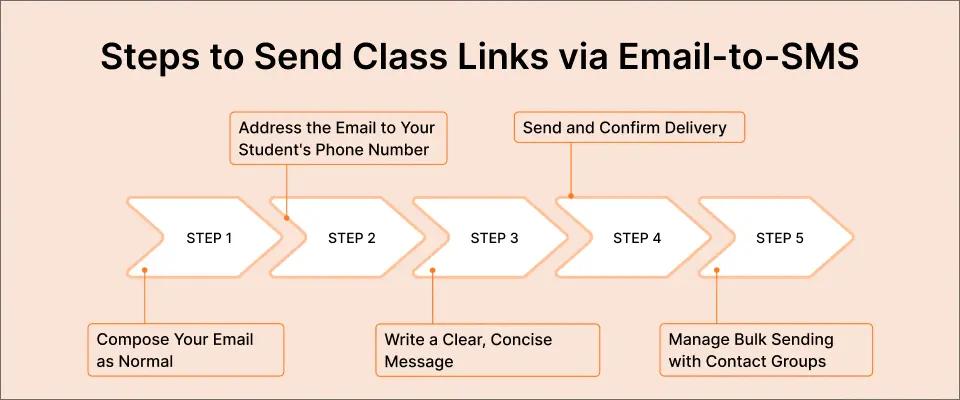
Each step builds on familiar email actions you already perform daily.
Step 1: Compose Your Email as Normal
Open Gmail, Outlook, or any email client you currently use for class communications. No new software or platform is required. The same familiar interface you and your staff already know works perfectly for sending text messages.
This process works from your desktop computer, laptop, tablet, or mobile device. Send from wherever you normally compose emails throughout your teaching day.
Step 2: Address the Email to Your Student’s Phone Number
Format the recipient address as the 10-digit phone number followed by @sendemailtotext.com. For example, if your student’s number is (555) 123-4567, you address the email to 5551234567@sendemailtotext.com.
Use only digits in the phone number. No hyphens, spaces, parentheses, or special characters. For an entire class section, use a Google Contacts group address you create containing all student phone numbers. Send one email to that group, and TextBolt delivers individual text messages to every student simultaneously.
Step 3: Write a Clear, Concise Message
Include your class name and session time in the subject line. Your email subject becomes part of the text message students receive, so clarity matters.
Format your email body with these elements:
- Brief context stating what class and when it starts
- The virtual classroom link on its own line for easy tapping
- Meeting ID or passcode if your platform requires it
- Any special instructions or materials needed
Keep your message under 160 characters when possible to avoid splitting into multiple text segments. Each segment uses one message credit from your TextBolt account.
Example message you might send:
“Biology 101 live session starts at 2 PM today. Join here: https://zoom.us/j/123456789. Meeting ID: 123-456-789. See you there! – Prof. Martinez”
Step 4: Send and Confirm Delivery
Click send. Your message converts to SMS automatically and delivers within seconds to your students’ phones. TextBolt processes the email and routes it through carrier-approved 10DLC channels for reliable delivery.
Check your TextBolt dashboard for delivery confirmation within 2 to 5 minutes. The dashboard shows you exactly which student phone numbers received the text successfully and which failed, allowing quick follow-up via email or phone call if needed.
Step 5: Manage Bulk Sending with Contact Groups
Create a Google Contacts group for each class section you teach. Name them clearly, like “Chemistry 201 Section A” or “Algebra Tutoring Group.” Add all student phone numbers to the appropriate group once per semester.
Send one email addressed to the group. TextBolt delivers individual text messages to every student in that group simultaneously. No copy-pasting phone numbers or sending messages one by one is required.
Update your groups once at the start of each term, then reuse them for every class session, assignment reminder, or schedule change throughout the semester. All TextBolt plans include 10 user accounts, so your entire teaching team can send messages from their own email addresses using the same system and shared contact groups.
Your Students Are Already Checking Their Phones
Meet them there with instant class link delivery from your existing email. No training, no complexity.
What are the Best Practices for Text-Based Link Delivery?
Follow these five best practices to maximize the effectiveness of the class links you send via text message. Small adjustments to timing, formatting, and verification create significant improvements in student attendance.
These practices address the most common mistakes educators make when first implementing text-based link delivery.
1. Time Your Messages Strategically
Send class links 15 to 30 minutes before regular sessions you teach. This timing gives students enough advance notice to prepare and join on time, while staying close enough to the session that they do not forget.
For last-minute schedule changes you make, send updated information immediately when the change occurs. For recurring weekly classes, send a morning reminder on class days even if students should already know the schedule. For office hours you hold, send the link when a student confirms they are attending.
Avoid sending too early, which causes students to forget by the time class starts. Avoid sending too late, which gives students insufficient time to see the message and join. The 15 to 30 minute window balances both concerns effectively.
2. Keep Your Messages Clear and Action-Oriented
Start with a class identifier you use consistently, like “BIO 101” or “Math Tutoring Session.” State the time explicitly using “starts at 2 PM” rather than vague phrases like “starts soon” that lose meaning if students read the message hours later.
Include your name so students recognize the sender immediately. Put the classroom link on its own line for easy tapping on mobile devices. Add meeting ID or password on another separate line below the link if your platform requires them.
Use this message template structure to get started:
| [Class Name] – [Day] at [Time] Join here: [Link] Meeting ID: [Number] Password: [If needed] – [Your Name] |
3. Verify Links Before You Send to Full Class
Test the virtual classroom link yourself before sending to your entire class roster. Open the link, verify the meeting room is accessible, and confirm any passcodes work correctly. Technical problems discovered after you sent messages to 30 students create unnecessary stress.
Send a test message to your own phone first if you are trying email-to-SMS for the first time or using a new contact group structure. Verify the text appears correctly formatted on a mobile device before mass distribution.
Check that the links you are reusing from previous sessions have not expired. Some platforms generate single-use links or links with limited validity periods. Creating a fresh link for each session prevents students from encountering “invalid meeting” errors.
4. Provide Backup Contact Information
Include your office phone number in messages for critical sessions where technical issues could prevent student access. Add an alternative email address students can use for urgent link problems if the primary classroom fails to load.
Consider setting up a backup Zoom room or Google Meet link you can distribute quickly if your primary platform experiences outages. Establish a clear protocol for students who do not receive your message, such as checking a specific webpage or calling a department number.
5. Request Delivery Confirmation for Critical Sessions
For exams or mandatory attendance sessions you require, add a line asking students to “Reply YES when you receive this link.” Track their confirmation responses in your inbox through two-way messaging.
Follow up via phone call with students who do not respond within 10 minutes. This proactive approach is especially important for high-stakes sessions where missing students face academic consequences. Delivery confirmation transforms your class link from a one-way broadcast into a verified communication you can document.
| Example from Your Teaching: Imagine you teach Chemistry 201 every Tuesday and Thursday at 3 PM. You schedule your class link texts to send at 2:30 PM each session day. This timing is early enough that your students see the reminder before making other plans, but close enough that they will not forget by the time class starts. |
When you moved one Thursday session to 4 PM to accommodate a guest speaker, you sent an updated link at 10 AM with “UPDATED TIME – Now 4 PM” in the message. Every student saw the change hours in advance, preventing the confusion and missed attendance that would have resulted from a last-minute email buried in their inbox.
What Else Can You Use Email-to-SMS For in Education?
Beyond class links, you can use email-to-SMS for dozens of time-sensitive educational communications your students and their families need to see immediately.
The same instant visibility that improves class attendance works for administrative, academic, and safety notifications across your entire institution.
Here are the most common ways educational institutions extend email-to-SMS beyond virtual classroom links.
1. Emergency and Time-Sensitive Alerts You Send
School closures you announce due to severe weather, power outages, or emergency situations reach families instantly via text instead of hoping they check email before leaving home. Lockdown notifications for safety protocols deliver critical instructions when seconds matter.
Last-minute schedule changes or class cancellations you make reach students before they commute to campus unnecessarily. Facility issues you need to communicate, like ‘no heat in specific buildings’ or ‘water main breaks affecting certain areas’, inform students and staff to make alternative plans immediately.
2. Academic Reminders and Deadlines Your Students Need
Assignment due dates and project milestones you set get forgotten less often when students receive text reminders the day before submission. Test schedules and exam room location assignments you send via text ensure students arrive at the correct building and room.
Grade posting notifications you send let students know immediately when their performance feedback is available to review. Registration and add/drop deadline reminders prevent students from missing critical dates that affect their academic progress. Transcript availability alerts you issue inform graduating students when they can request official documents.
3. Parent and Family Communication You Manage
Progress report availability announcement reaches parents who may not check school email regularly but always check text messages. Permission slip reminders for field trips you organize ensure forms return on time instead of staying forgotten in backpacks.
Parent-teacher conference confirmations you send reduce no-show appointments when parents receive text reminders the day before. Attendance notifications you send about absences or tardiness alert parents the same day issues occur. Tuition payment reminders reach families through their preferred communication channel.
4. Campus Events and Activities You Coordinate
Sports schedule changes and game reminders you send keep student-athletes and their families informed of updated times and locations. Club meeting notifications you send boost attendance by reaching members wherever they are throughout the day.
The announcements you make ensure students know about mandatory or optional gatherings. Guest speaker or special event alerts you issue generate higher turnout through immediate visibility. Career fair and college visit opportunities you promote reach students who might miss announcements posted only via email or bulletin boards.
Class links serve as your gateway use case, demonstrating immediate visibility benefits. The same email-to-SMS approach you use for virtual classroom access solves dozens of educational communication challenges across administrative, academic, and safety domains.
Use TextBolt to Deliver Class Links Your Students Actually See
Your students missing online class links is not an attention problem. It is a visibility problem. Email gets buried under hundreds of messages that your students receive daily. Text messages appear instantly on lock screens where your students actually look for time-sensitive information.
By sending class links via email-to-SMS, you ensure every student sees every session invitation exactly when it matters, directly on the device they check constantly throughout the day.
The solution requires no new software for you or your staff to learn, works from the email clients you already use, and costs less than one missed class session per semester.
TextBolt works with your existing Gmail or Outlook and requires zero training for you or your staff. 500+ organizations already rely on email-to-SMS for critical communications. Start your free 7-day trial with 10 message credits and see how simple reaching your students should be.
Visit our pricing page to compare plans, or sign up now to begin your trial immediately.
Frequently Asked Questions
Can I send class links to an entire class at once?
Yes. Use Google Contacts to create a group for each class section you teach, then send one email to the group address. TextBolt delivers individual text messages to every student in that group simultaneously. No copy-pasting phone numbers or sending messages one by one is required.
What if a student does not have a cell phone?
You can continue sending email notifications as a backup method. Email-to-SMS works alongside your existing communication, not as a replacement. Students with phones get instant text alerts, while those without still receive your traditional email notifications.
How do I know which students received the link I sent?
TextBolt’s dashboard shows delivery status for each message within 2 to 5 minutes. You can see which numbers received the text successfully and which failed, allowing you to follow up quickly via email or phone call if needed.
Can students reply if they have questions about the link?
Yes. SMS replies come back as standard email replies in your inbox, so you can answer questions without switching platforms. Students text back, you see it in Gmail or Outlook, and you respond by replying to the email just like any normal conversation.
Do I need special software to send class links via text?
No. TextBolt works with your existing Gmail, Outlook, or any email client you already use for daily communications. There is no new software to install, no platform for you or your staff to learn, and no IT department required for setup.
What happens if the class link I sent expires or changes?
Simply send a new text message with the updated link. Since messages deliver within seconds, your students receive corrections in real time. You can also schedule link delivery closer to your session time to minimize last-minute changes that require updates.
Can I schedule class link messages in advance?
Yes. Use Gmail’s built-in “Schedule Send” feature to compose your class link message and schedule it to send at your preferred time, like 30 minutes before class starts. Gmail sends the email at that scheduled time, and TextBolt converts it to SMS automatically without requiring you to be online.