
- Why Traditional Business Texting Creates Team Coordination Nightmares
- How Email-to-SMS Solves the Team Coordination Challenge
- Real-World Team Coordination Scenarios
- Setting Up Email-to-SMS for Your Team
- Best Practices for Team Text Coordination
- Email-to-SMS vs. Other Team Communication Solutions
- Measuring Team Coordination Success
- Common Team Coordination Challenges and Solutions
- Getting Started With Team Email-to-SMS
- Frequently Asked Questions
Team Texting Without the Chaos
How Email-to-SMS Enables Seamless Team Coordination and Business Texting

Your front desk coordinator just called in sick. She’s the only person with the office cell phone, and 47 patients have appointments today. Each one needs a reminder text, but nobody else on your team can access the phone. Sound familiar?
Email-to-SMS for team coordination solves this exact problem. Instead of depending on one phone or one person, your entire team sends professional business texts directly from their individual email accounts. Anyone can cover for anyone. No single point of failure. No chaos when someone’s out.
In this guide, you’ll discover how email-to-SMS transforms team communication, why traditional texting methods create dangerous bottlenecks, and how to implement a team-wide texting system that takes less than 30 minutes to set up.
Why Traditional Business Texting Creates Team Coordination Nightmares
Most businesses text customers using one of three methods. All of them create problems when multiple team members need to communicate.
The Office Cell Phone Problem
Many businesses rely on a dedicated office phone for texting. One phone. One person who knows how to use it. One charger that someone inevitably forgets to plug in.
Here’s what happens in the real world:
- Staff absences break everything. When the person with the phone calls in sick, nobody can send appointment reminders. A single sick day at a medical practice can mean 50 no-shows and $22,500 in lost revenue.
- Shift handoffs become complicated. The morning receptionist has to physically hand the phone to the afternoon receptionist. Miss the handoff? Messages pile up unanswered.
- No visibility into what was sent. Management has no easy way to see message history unless they physically check the phone. Disputes about whether a reminder was sent become he-said-she-said situations.
- Security risks multiply. Staff have personal access to customer phone numbers. If someone leaves on bad terms, they’ve had your customer data in their hands. If the phone gets lost, so does everything on it.
The Personal Phone Problem
Some businesses have staff text customers from personal phones. The problems compound even faster.
Customers receive texts from random personal numbers they don’t recognize. Messages look unprofessional or get flagged as spam. Staff mix personal and business conversations. Employees leave and take customer relationships with them.
For healthcare practices, personal phone texting creates HIPAA nightmares. Patient information on a personal device? Compliance officers lose sleep over this.
The Platform Problem
Enterprise SMS platforms promise to solve these issues. Many of them do, technically. But they create new problems.
Staff must learn an entirely new system. Someone has to administer user accounts. Monthly costs balloon as you add users at $10-15 per seat. Training takes hours that nobody has. Half the team never logs into the platform after the first week.
How Email-to-SMS Solves the Team Coordination Challenge
Email-to-SMS flips the model. Instead of learning a new platform, your team uses the email system they already know. Here’s how it works.
1. One Business Number, Unlimited Team Access
With email-to-SMS service, your business has one professional phone number. Every team member can send and receive texts from that number using their individual email account.
Tom sends appointment reminders from tom@yourpractice.com. Sarah sends follow-ups from sarah@yourpractice.com. Both messages appear to customers from your single business number. Recipients never know who on your team actually pressed send.
This is the foundation of team text messaging that actually works. No shared logins. No physical devices to pass around. No single point of failure.
2. Zero Learning Curve
If your staff can send an email, they can send a text. That’s not marketing speak. That’s how email-to-SMS literally works.
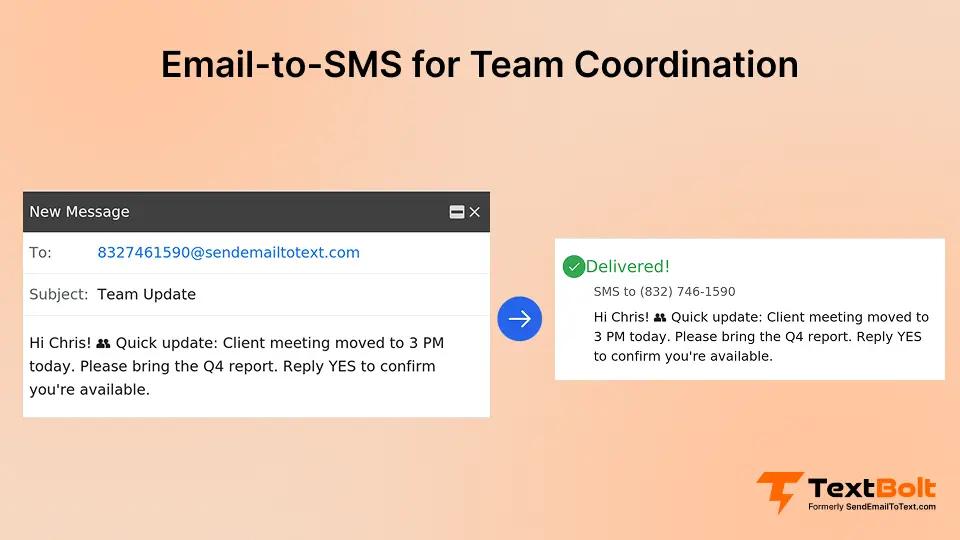
To send a text, you compose a regular email. Instead of sending to an email address, you send to the recipient’s phone number at a special domain. For example: 5551234567@sendemailtotext.com.
Write your message in the email body. Hit send. The recipient gets your message as a standard SMS text on their phone.
Your staff already knows how to do this. Training time: approximately zero.
3. Complete Message History and Audit Trail
Every text sent through email-to-SMS lives in your email system. Gmail, Outlook, whatever you use. Messages are threaded, searchable, and documented.
Need to know who sent a reminder to Mrs. Johnson last Tuesday? Search your email. Want proof that an appointment confirmation went out? It’s in your sent folder with a timestamp.
For industries that require documentation, like healthcare, legal, or financial services, this audit trail is invaluable. You don’t need a separate system to track communications. Your email does it automatically.
4. Seamless Coverage During Absences
Here’s where email-to-SMS transforms team coordination.
When Sarah calls in sick, Tom opens his email and picks up where she left off. The customer contact list is accessible through your email system’s contacts or groups. Tom sends the day’s appointment reminders exactly as Sarah would have. Patients receive texts from the same business number they always see.
No phone to locate. No passwords to share. No coverage gaps. No $22,500 revenue loss from missed reminders.
Stop Relying on One Phone or One Person
With TextBolt’s email-to-SMS, your entire team can send and receive business texts from their own email—using one shared business number.
Real-World Team Coordination Scenarios
Different industries face different coordination challenges. Email-to-SMS adapts to all of them.
Healthcare Practice: Multi-Provider Coordination
A dental practice with three dentists and six front desk staff needs to send appointment reminders, post-procedure instructions, and schedule change notifications.
The old way: One office manager handles all texting from her personal phone. She’s overwhelmed. Other staff can’t help because they don’t have access. When she goes on vacation, appointment reminders stop.
With email-to-SMS: Any front desk staff member sends reminders from their workstation email. Hygienists send post-cleaning instructions directly to patients. The practice manager monitors all communications from her inbox. Vacation coverage is seamless because everyone uses the same system. It also prevents important internal updates from slipping through the cracks when responsibilities shift between team members.
The practice reduces no-shows by 38% while distributing the workload across the entire team. For more on healthcare text messaging solutions, including HIPAA considerations, see our industry guide.
IT Department: On-Call Alert Distribution
An IT team monitors critical systems 24/7. Server alerts need to reach whoever is on-call, immediately. For teams managing IT alert text messaging, email-to-SMS provides a reliable solution.
The old way: Monitoring systems send emails to a shared inbox. The on-call engineer must check email constantly. Critical alerts get buried in noise. Response times suffer.
With email-to-SMS: Monitoring systems send alerts to phone numbers via email-to-SMS. The on-call engineer receives SMS alerts directly to their phone. No email inbox checking required. When shifts change, simply update which phone number receives the alerts.
Email goes to 5551234567@sendemailtotext.com during Sarah’s shift. Switches to 5559876543@sendemailtotext.com when Tom takes over. Response time drops from 15 minutes to under 2 minutes.
Small Business: Shared Customer Communication
A local auto repair shop has three mechanics and a front desk coordinator. Customers need vehicle-ready notifications and appointment reminders.
The old way: The front desk coordinator texts from her personal phone. Mechanics can’t notify customers when vehicles are done. She becomes a bottleneck. Customers wait for callbacks that come hours late.
With email-to-SMS: Any staff member with a computer sends customer notifications from their email. Mechanics email the customer directly when repairs finish. The front desk coordinator sends appointment reminders and estimates. All messages come from the shop’s professional business number.
Customer satisfaction improves because updates arrive faster. Staff workload distributes evenly. The front desk coordinator no longer wants to quit.
Setting Up Email-to-SMS for Your Team
Implementation takes less than 30 minutes for most businesses. Here’s the process.
Step 1: Choose Your Email-to-SMS Provider
Not all providers offer true team coordination features. Look for:
- Multi-user access without per-seat fees. Some platforms charge $10-15 per user. For a 10-person team, that’s $100-150/month just in user fees.
- Professional business number. Your texts should come from a consistent, recognizable number, not random carrier addresses or personal phones.
- 10DLC compliance. From 2023, carriers require 10-Digit Long Code (10DLC) registration for business messaging. Non-compliant messages get filtered as spam. Your provider should handle this registration for you.
- Two-way messaging. Customers should be able to reply to your texts, with replies landing in your team’s email inboxes.
TextBolt provides all of these features with a professional email-to-text service designed specifically for team coordination.
Step 2: Register Your Business
10DLC compliance requires business verification. This process takes 1-2 business days and includes:
- Business name and address verification
- EIN or tax ID confirmation
- Use case description (appointment reminders, customer service, alerts)
- Website verification
Your provider handles the paperwork. You provide basic business information.
Step 3: Receive Your Business Number
Once verification completes, you receive a dedicated toll-free or local business number. This number appears on all outgoing texts from any team member.
Professional numbers with 10DLC registration achieve up to 98% delivery rates. Compare this to carrier email gateways (before they shut down), which delivered only 30-40% of messages reliably.
Step 4: Configure Team Access
Add team members by registering their email addresses with your provider. Each person can then send texts from their individual email account.
No shared passwords. No software installation. No special training. They compose an email, address it to the phone number, and send.
For step-by-step instructions, see our guide on how to send email to text.
Step 5: Import or Sync Contacts
Most email-to-SMS systems integrate with Google Contacts or other contact management tools. Import your existing customer contact list so team members can easily select recipients.
Create groups for common use cases. “Tomorrow’s appointments” for daily reminders. “Service due” for maintenance notifications. “All parents” for school emergency alerts.
Select a group, compose one email, and deliver 50 texts in seconds.
Best Practices for Team Text Coordination
Once your system is running, optimize how your team uses it.
1. Establish Clear Responsibilities
Even with team-wide access, assign primary responsibilities to avoid duplicate messages:
- Morning reminders: Designated staff member sends next-day appointment confirmations
- Same-day updates: Whoever handles scheduling sends schedule change notifications
- Customer follow-ups: Assigned team member or automatic rotation
- Emergency coverage: Documented backup person for each primary responsibility
Clear assignments prevent both missed messages and duplicate messages.
2. Create Message Templates
Consistent messaging builds professionalism. Create email templates for common text types:
Appointment reminder template:
Hi [Name], reminder: your appointment is tomorrow at [Time]. Reply YES to confirm or call us to reschedule. – [Business Name]
Service ready notification:
Hi [Name], your [service] is complete and ready for pickup. We’re open until [time]. Questions? Reply to this text. – [Business Name]
Templates ensure consistency even when different team members send the same message types. They also keep messages short. SMS messages have a 160-character limit per segment, and longer messages cost more credits.
3. Monitor and Respond Promptly
With email-to-SMS, customer replies arrive as emails. Assign someone to monitor the inbox during business hours.
Set expectations with customers. “Reply to this text with questions” works when someone is actually monitoring. If your team can’t monitor consistently, provide a phone number for urgent matters instead.
4. Document Your Process
Create a brief internal guide covering:
- Which email address format to use for sending texts
- Common templates and when to use them
- Who handles which message types
- Coverage during absences
- What to do if a message fails to send
A one-page document prevents confusion and ensures consistency even as staff turns over.
Email-to-SMS vs. Other Team Communication Solutions
How does email-to-SMS compare to alternatives?
Email-to-SMS vs. Shared Phone
| Factor | Shared Phone | Email-to-SMS |
| Team access | One person at a time | Everyone simultaneously |
| Absence coverage | Requires physical handoff | Seamless from any computer |
| Message history | On device only | In email system |
| Security | Lost phone = lost data | No device risk |
| Setup time | Immediate | 30 minutes |
| Monthly cost | $30-50 phone plan | $29-99 service fee |
Email-to-SMS wins on access, coverage, and security. The shared phone wins on nothing.
Email-to-SMS vs. Enterprise SMS Platform
| Factor | Enterprise Platform | Email-to-SMS |
| Learning curve | Hours of training | Zero |
| Per-user fees | $10-15/user/month | None |
| Integration | Complex setup | Uses existing email |
| Feature set | Extensive | Focused |
| Adoption rate | Often low | Near 100% |
Enterprise platforms offer more features. Email-to-SMS offers simplicity that teams actually use.
For business messaging platform comparisons, see our detailed feature analysis.
Email-to-SMS vs. Carrier Gateways (Now Discontinued)
The free carrier email-to-text gateways (AT&T’s @txt.att.net, Verizon’s @vtext.com, T-Mobile’s @tmomail.net) shut down in 2025. Businesses that relied on them faced a choice: enterprise platforms or professional email-to-SMS.
Professional email-to-SMS preserves the same workflow. You still send an email. The address just changes to your provider’s domain. Migration takes 15-20 minutes for most businesses. For a detailed comparison, see our guide on VText alternatives for reliable business texting.
Measuring Team Coordination Success
Track these metrics to assess your email-to-SMS implementation:
1. Coverage Consistency
Before email-to-SMS: How many days did appointment reminders get missed due to staff absences?
After: This should be zero. If you’re still having coverage gaps, review your responsibility assignments and documentation.
2. Response Time
How quickly do team members respond to customer text replies?
Email-to-SMS puts replies into your existing email workflow. Response times should match or beat your email response times.
3. Message Delivery Rate
Professional email-to-SMS with 10DLC compliance delivers up to 98% of messages. If you see lower rates, check your message content for spam triggers and ensure your registration is complete.
4. Team Adoption
Is everyone actually using the system?
With email-to-SMS, adoption usually isn’t an issue because there’s nothing new to learn. If team members resist, they may not understand how it works. A quick 5-minute demo typically resolves hesitation.
5. Customer Feedback
Are customers responding to texts? Confirming appointments? Asking follow-up questions?
High engagement indicates your messages are being received and valued. Low engagement may signal delivery issues, message timing problems, or content that doesn’t resonate.
Common Team Coordination Challenges and Solutions
Challenge: Duplicate Messages
Two team members both send reminders to the same customer.
Solution: Assign primary responsibility for each message type. Use shared calendars or task lists to mark when reminders have been sent. Some email-to-SMS providers offer message history views that show what’s been sent.
Challenge: Inconsistent Messaging
Different staff members send different versions of the same message type, confusing customers.
Solution: Create approved templates. Store them in a shared document or email draft folder. Train new staff on which templates to use.
Challenge: Delayed Responses
Customer replies sit in the inbox for hours before anyone sees them.
Solution: Assign inbox monitoring during business hours. Set up email notifications for new messages. Consider a rotation schedule if volume is high.
Challenge: After-Hours Messages
Customers text outside business hours expecting immediate responses.
Solution: Set clear expectations in your messages. “Reply during business hours (8 AM – 5 PM) for assistance.” For urgent matters, provide an alternative contact method.
Ready to Implement Team Wide Texting?
TextBolt is designed specifically for multi-staff coordination no software installs, no training, no extra user costs.
Getting Started With Team Email-to-SMS
Ready to eliminate texting bottlenecks and enable true team coordination?
Start with these steps:
- Assess your current pain points. How many people can send business texts today? What happens when they’re unavailable?
- Choose a provider. Look for multi-user access, professional business numbers, 10DLC compliance, and no per-seat fees.
- Plan your rollout. Identify who needs access, create initial templates, and document responsibilities.
- Complete setup. Registration and configuration typically take under 30 minutes.
- Train your team. Show them how to send a text via email. This takes about 5 minutes.
- Monitor and optimize. Track delivery rates, response times, and team adoption during the first few weeks.
Email-to-SMS for team coordination isn’t complicated. It’s an email. Your team already knows how to use it.
The difference is what happens next. Messages actually get sent when they need to be sent. Coverage gaps disappear. Customer communication improves. And you stop worrying about what happens when someone calls in sick.
Start your 7-day free trial with TextBolt and see how seamless team text coordination can be. Setup takes 30 minutes. Your staff already knows how to send an email. That’s literally all they need to know.
Frequently Asked Questions
Can different team members see each other’s sent messages?
Yes. All sent texts appear in your email system’s sent folder. Managers can review message history by searching email. Some organizations use shared mailboxes for complete visibility.
Is email-to-SMS HIPAA compliant for healthcare teams?
TextBolt processes only phone numbers and message content with direct transmission. No patient data is stored on TextBolt servers. We recommend consulting your compliance team to ensure the solution fits your specific requirements.
How do customers reply to team-sent texts?
Customer replies arrive as emails to the original sender’s inbox. For shared monitoring, configure replies to go to a shared mailbox or distribution list.
Can we schedule texts in advance?
Yes. Use your email client’s schedule send feature. Compose your message, schedule it for the desired send time, and the text delivers automatically. This is ideal for next-day appointment reminders.