
- What is Email-to-SMS for Educational Institutions?
- Problems with Traditional SMS Platforms
- How Email-Native SMS Works (And Why it Needs Zero Training)
- Step-by-Step: Implementing Email-to-SMS in Your Institution
- 4 Ways Educational Institutions Use Email-to-SMS
- How to Evaluate Your Current Tools Before Adding SMS
- Send Texts From Email With TextBolt- No Training Required
- Frequently Asked Questions
Your Team Already Knows Email, They Already Know Texting
How to Add SMS to Your Institution Without Training Staff

You already manage too many platforms. Learning another communication system wastes the time your staff doesn’t have. New tools mean training sessions, support tickets, and resistance from busy administrators who just want to communicate effectively.
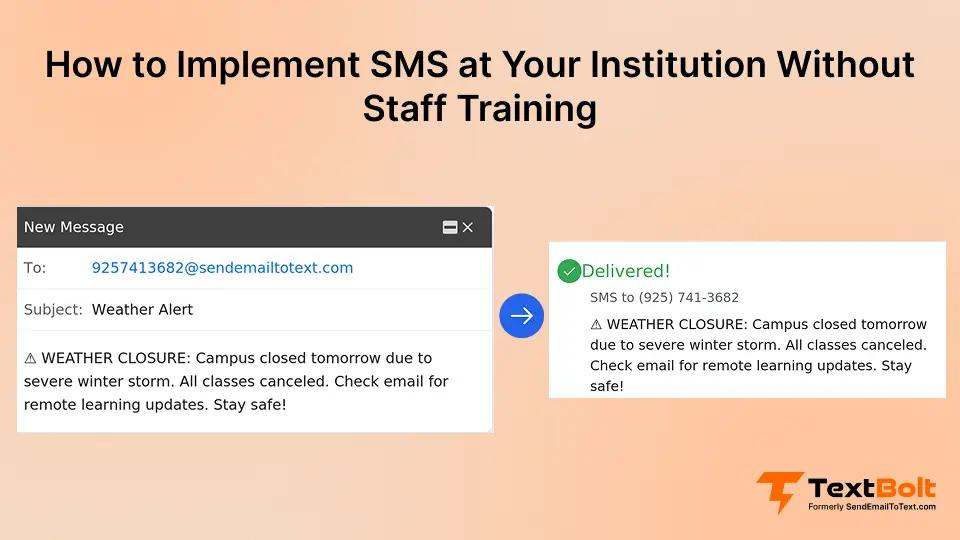
In such cases, adding SMS to your institution without training your staff is a good bet. Email-to-SMS lets your team send texts from Gmail or Outlook, tools they already use every day. No new platform to learn. Your staff composes regular emails, and messages are delivered as SMS to recipients’ phones. Zero learning curve, zero disruption to existing workflows.
Adding SMS doesn’t have to mean adding complexity. An email-to-text service extends what your team already knows instead of forcing them to learn something new.
What is Email-to-SMS for Educational Institutions?
Email-to-SMS converts regular emails into text messages. Your staff composes emails using a simple format: [phonenumber]@sendemailtotext.com. Messages are delivered to recipients as standard SMS on their phones.
No apps to install, no separate platform to learn, no new passwords to manage. Your team uses the same email interface they already know. Gmail, Outlook, or any email client your institution uses works immediately.
Here’s how it works in practice. You need to announce a weather closure. Compose one email addressed to your “All Families” contact group in SMS format. You write your message and send it. Within minutes, families receive individual text messages.
Your staff already sends emails dozens of times daily. They already know how to send an email to text. The technology just converts that familiar action into SMS delivery.
Your Staff Already Knows How to Send Emails. They Already Know How to Text
Email-to-SMS works directly with Gmail and Outlook. No training sessions, no new software, and no learning curve. See how simple institutional messaging should be.
Problems with Traditional SMS Platforms
Traditional SMS platforms disrupt workflows your staff already use effectively. The tool meant to improve communication actually slows it down. Here’s exactly how.
1. A New Dashboard Means Hours of Training
New dashboards mean learning unfamiliar interfaces. You spend time training instead of communicating. Staff resistance increases with each new platform, and your IT department fields more support tickets.
2. Separate Login Credentials Create Constant Access Issues
Separate login credentials create password resets and access issues. Your front office already logs into six different platforms daily. Adding another one means another password to reset, another tool that only three people know how to use.
3. Different Contact Lists Force Duplicate Data Entry
Different contact management systems force duplicate data entry. Each platform switch breaks focus and requires cognitive effort to remember which system handles which task. Training time compounds with every additional tool.
4. Single-Person Dependency Creates Coverage Gaps
When those three people take a vacation or call in sick, communication stops. Support burden increases as staff forgets logins and workflows between uses.
5. Staff Turnover Compounds the Problem
The complexity compounds when staff members leave. Institutional knowledge walks out the door. New employees face steeper learning curves because the platform isn’t intuitive. Your training documentation becomes another thing to maintain and update.
Traditional platforms assume you have time for training. Most educational institutions don’t. Your staff needs tools that work immediately, not tools that require investment before they become useful.
How Email-Native SMS Works (And Why it Needs Zero Training)
Es a standard SMS on their phone.mail-native SMS builds on what your staff already know. They already compose emails, manage contact lists, and handle replies in their inbox. Email-to-SMS uses exactly these same skills.
You compose emails in Gmail or Outlook using the same process you’ve used for years. You address the message to a simple format: [phonenumber]@sendemailtotext.com. You write your message in the email body. You send the email. The recipient receive
When they reply, the message comes back as a standard email reply in your inbox. You respond by hitting reply, just like any other email. The entire conversation happens in the familiar email interface. No platform switching. No separate inbox to monitor.
Your existing contact lists in Gmail or Outlook work immediately. The groups you’ve already created for parent communication, department messaging, or emergency alerts transfer directly to SMS. No re-entering contacts. No managing duplicate databases across platforms.
Here’s the complete workflow your staff needs to learn:
- Compose email in Gmail or Outlook (same as always)
- Address to [phonenumber]@sendemailtotext.com
- Write a message in the email body
- Send email
- Message delivers as SMS
- Replies come back as email replies
That’s it. Six steps, five of which your staff already do dozens of times per day. The only new piece is the email address format.
| Traditional SMS Platform | Email-Native SMS (Like TextBolt) |
| Requires staff to learn a brand‑new dashboard just to send a simple update. | Uses the same email screen staff already live in all day (Gmail or Outlook), so sending a text feels exactly like sending an email. |
| Forces users to remember yet another URL and set of login credentials. | Works from the accounts they are already logged into, so there is no extra login step between “I need to tell parents something” and “message sent.” |
| Stores contacts in a separate system, which means exporting, importing, and maintaining duplicate lists. | Reuses existing email contact lists and groups, so “All Families” or “Grade 5 Parents” groups work instantly for SMS with no data re-entry. |
| Creates a second inbox for replies that someone has to remember to check. | Delivers replies right back into the sender’s email inbox, so staff manage conversations exactly like normal email threads. |
| Needs formal training sessions, written SOPs, and refresher sessions after breaks. | Has almost no learning curve because the only new thing to remember is the address format: [phonenumber]@sendemailtotext.com. |
| Becomes a “specialist tool” that only two or three people are comfortable using. | Can be used by anyone who can send an email, which means the front office, nurse, counselor, and admin can all send time‑sensitive texts without waiting on a specialist. |
Email-to-SMS services like TextBolt integrate directly with your institution’s existing email infrastructure. You don’t replace the tools your staff knows. You extend what already works. Gmail text integration preserves workflows while adding SMS capability.
Step-by-Step: Implementing Email-to-SMS in Your Institution
Adding SMS to your institution doesn’t require technical expertise or extensive planning. The process takes about 30 minutes of administrative setup, and your staff starts sending messages immediately after approval. Here’s exactly how implementation works.
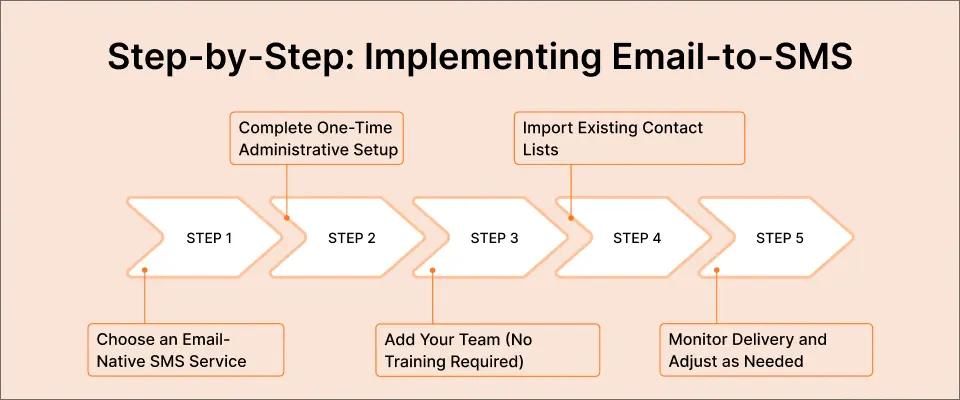
Step 1: Choose an Email-Native SMS Service
Look for services that work directly with Gmail and Outlook, not platforms that require separate apps or dashboards. Verify that your staff can send messages from their existing email accounts without logging into another system. The right service integrates with tools you already use, not tools you need to adopt.
What to verify:
- Works with Gmail, Outlook, or your institution’s email system
- No separate app or dashboard required for sending messages
- Supports contact groups from Google Contacts or Outlook
- Includes business-grade compliance (10DLC registration handled automatically)
- Allows two-way messaging (replies come to email inbox)
- Transparent pricing with no hidden per-user fees
The service should feel invisible to your staff. They send emails. Messages deliver as SMS. That’s the entire user experience.
Step 2: Complete One-Time Administrative Setup
Administrative setup takes approximately 30 minutes and requires no technical skills. You create an account, provide basic business information, and complete verification. The service handles 10DLC compliance registration automatically. You just answer a few questions about your institution and messaging use cases.
Important timing note: While account creation takes 30 minutes, 10DLC compliance approval typically takes up to 48 hours. Your staff cannot send messages until this approval is complete. This is a one-time waiting period that ensures carrier-approved message delivery and protects your institution’s messaging reputation.
What you’ll do:
- Create an account with the institution name and contact information
- Verify your organization (business license, EIN, or educational documentation)
- Describe your messaging use cases (emergency alerts, attendance notifications, event reminders)
- Provide sample messages for compliance review
- Wait for 10DLC approval (typically 24 to 48 hours)
Your staff doesn’t touch any of this. It’s an admin-only, one-time setup. Once approved, the infrastructure works silently in the background. Your team just sends emails as normal.
Step 3: Add Your Team (No Training Required)
Once setup completes, you add your staff members to the account. With email-native SMS, this doesn’t mean teaching anyone a new system. You simply provide the email address format they’ll use: [phonenumber]@sendemailtotext.com.
Your staff compose emails exactly as they normally do, address them to this format, and send. Messages are delivered as SMS. That’s the entire process.
What your staff needs to know:
- Email address format: [phonenumber]@sendemailtotext.com
- Write message in email body
- Send email, message delivers as text
That’s it. Three points. No training session required. You can communicate this in a quick email or mention it in a staff meeting. Most staff start sending messages immediately without questions.
Key capability: Email-to-SMS services typically include 10 user accounts on all plans with no per-user fees. Your entire front office can send messages without multiplying costs or complexity. Add the school nurse, attendance coordinator, principal, assistant principal, guidance counselors, and department heads. Everyone gets access without a budget impact.
The process works the same way to send SMS from Outlook. Compose an email in Outlook, use the same address format, and send. The service works with any email client that supports SMTP.
Step 4: Import Existing Contact Lists
Your staff already maintains contact lists in Gmail or Outlook. Email-to-SMS works with these existing lists. No re-entry, no duplicate databases, no contact management training required.
If you use Google Contacts, you create groups based on how you already organize people. “Grade 5 Parents,” “Athletics Department,” “All Staff,” “Emergency Contact List.” Your staff selects the group and sends one email. Each recipient receives an individual SMS.
If you maintain contact lists in your student information system or another database, check with your email-to-SMS provider about import options. Many services support common formats for initial contact setup.
Contact management options:
- Google Contacts groups (native integration for Gmail users)
- Email contact lists (works with any email provider)
- Existing contact management in your email system
- Manual entry for small lists or one-time messages
The goal is using contact management you already have. If your staff maintains contacts in Gmail or your email system, they continue doing exactly that. Contact groups you create work immediately for both email and SMS communication.
Step 5: Monitor Delivery and Adjust as Needed
After messages are sent, you can check the delivery status in the administrative dashboard (admin access only). Your staff doesn’t need to monitor anything or log into any platform. They send emails from their inbox and continue their day.
The dashboard shows message history, delivery confirmation, and any failed sends. Most email-to-SMS services achieve up to 98% delivery rates* due to carrier-compliant 10DLC registration. Messages reach recipients reliably because carriers recognize them as legitimate business communication.
If you notice delivery issues with specific carriers or message types, the service provider can help troubleshoot. But in most cases, your staff send messages and recipients receive them. No intervention required. No technical knowledge needed.
Staff experience: Send email. Message delivered. Replies come back to the inbox. Done.
The simplicity continues over time. Your staff doesn’t need refresher training. They don’t forget how to use the system during summer break. New hires learn in minutes because they already know email. The system requires no ongoing maintenance from your IT team.
4 Ways Educational Institutions Use Email-to-SMS
Email-to-SMS works for any scenario where you need to reach students, parents, or staff quickly. Here’s how institutions use it across different departments and situations.
Use Case 1: Emergency Weather Closures
You wake up at 5 AM to heavy snow. You need to notify 1,200 families before they start their morning routines. You open Gmail on your phone, compose one email addressed to your “All Families” contact group using the SMS format. You write, “Snow day, school closed today. Makeup day will be announced soon.” You send.
Families receive individual text messages quickly. No logging into emergency notification systems. No remembering dashboard passwords. No waiting for someone else who has access to send the alert.
Parents start replying with questions about the makeup day and when athletics resume. Replies come back to your email inbox. You respond via email, and recipients receive your responses as SMS. The entire conversation happens in your familiar email interface.
This works from anywhere. You’re home in pajamas at 5 AM, but you can still reach every family instantly. You use the device you already have (your phone), the app you already use (Gmail), and the contacts you already maintain. Email to SMS for emergency alerts doesn’t require special access or special knowledge.
Use Case 2: Attendance Notifications Throughout the Day
Your front office sends absence notifications as attendance gets recorded. Staff member checks the attendance system at 9 AM, sees 15 absent students, composes one email to those 15 families using their contact group, and sends.
At 11 AM, three more students are marked absent. Same process: quick email, immediate text notification to parents. No breaking workflow to log into a separate attendance notification system. No platform switching. Staff stays in email, the tool they’re already using for everything else.
Parents receive notifications within minutes of their student’s absence being recorded. They can reply directly if the absence is excused or if they need to provide documentation. Replies come to the front office email, where staff handles all other parent communication.
The workflow integrates seamlessly with your existing attendance process. Staff record attendance in your student information system, then send quick email notifications to affected families. No duplicate data entry. No learning which platform handles attendance alerts versus which handles emergency notifications.
Use Case 3: Event Reminders and Schedule Changes
Your athletic director needs to notify parents about tomorrow’s game location change. They compose an email during their lunch break, send it to the “Fall Soccer Parents” contact group, and continue their day. Message sent, parents notified, problem solved.
Your guidance counselor sends a college night reminder to junior families. One email to the “Junior Parents” group becomes 200 individual text messages. Families receive the notification on devices they check constantly (their phones) rather than email they might check once daily.
Messages are sent from work email accounts during normal workflow. No accessing separate sports communication platforms. No learning event management systems. No, depending on the one person who knows how the athletic communication tool works.
When schedule changes happen last-minute (field conditions, official cancellations, weather delays), the person with the information sends the notification immediately. No waiting for someone else. No chain of communication where information gets delayed or lost.
Use Case 4: Daily Operational Communication
Your staff uses email-to-SMS for dozens of operational tasks:
- The transportation coordinator emails affected routes when buses run late. Parents receive real-time updates about pickup delays instead of waiting and wondering.
- Lunch staff texts menu changes when deliveries are late or equipment breaks. Families with dietary restrictions or picky eaters get advance notice before lunch surprises happen.
- The librarian messages students with holds when books arrive. Students pick up materials the same day instead of holds sitting on shelves for weeks.
- Teachers text parents about outstanding permission slips the day before field trips. Forms come back instead of students missing activities.
- The attendance coordinator reminds families about doctor’s appointments on file. Fewer students marked absent when families remember scheduled absences.
- The counseling office sends testing schedule reminders. Students arrive prepared for SAT, ACT, state assessments, and other critical testing days.
Each person sends from their existing email account. No shared credentials. No bottlenecks waiting for “the person who knows how to use the system.” Communication happens when needed, by whoever needs to send it.
How to Evaluate Your Current Tools Before Adding SMS
Before adding SMS, assess how many platforms your staff currently manage. The goal isn’t adding another tool. The goal is to consolidate communication into systems your team already knows.
| Question | What It Reveals |
| How many different platforms do staff log into daily? | Cognitive load and workflow disruption |
| Which tools require written training documentation? | Complexity that slows adoption |
| How long does it take new staff to learn your communication systems? | True onboarding costs and productivity delay |
| What’s your IT support ticket volume for communication tools? | Hidden support burden and staff frustration |
| How many “single points of failure” exist (only one person knows the system)? | Institutional risk and coverage gaps |
| What happens when staff leave (do credentials and knowledge walk out)? | Knowledge transfer challenges |
| How often do messages get delayed because the authorized person is unavailable? | Communication bottlenecks affecting families |
These questions reveal the real cost of platform complexity. Each separate system your staff learn represents hours of training, ongoing support burden, and institutional risk when key people are unavailable.
The Advantage of Using an Email-Native Platform like TextBolt
When you consolidate to email-based tools, you reduce cognitive load without sacrificing capability. Your staff’s competency with email translates to instant competency with email-to-SMS.
Consider the difference:
Multiple separate platforms:
- Front office logs into 6+ different systems daily
- Emergency alerts in one platform, attendance in another, parent messaging in a third
- Each system has different interfaces, contact lists, and workflows
- Training required for each platform
- Support tickets multiply with each tool
- Bottlenecks when the person who knows the system calls in sick
Email-native SMS:
- One interface your staff already master: email
- One set of contacts across all communication types
- One workflow they already know
- Zero training required
- No platform switching or context shifting
- Multiple people can send messages without special access
The result: Lower support burden, faster adoption, better compliance, and communication that actually happens instead of being delayed by platform complexity. Staff sends messages when information is relevant instead of waiting for the authorized person to return from vacation.
Stop Adding Tools. Start Using the Ones Your Staff Already Know
Email-to-SMS integrates with Gmail and Outlook, so your team sends messages without learning anything new. Setup takes 30 minutes. Staff training takes zero.
Send Texts From Email With TextBolt- No Training Required
Training sessions slow adoption and frustrate already-busy staff. Email-native SMS removes the learning curve entirely by leveraging tools your team already uses every day. Your staff sends texts exactly like sending emails, because that’s precisely what they do.
The result is faster implementation, better adoption, and lower support costs. You communicate effectively without sacrificing time to platform training, password resets, or support tickets. Your staff spends time communicating with families instead of learning communication systems.
TextBolt works directly with your institution’s existing email infrastructure. More than 500 organizations trust the platform for critical communications. Try it free for 7 days with 10 message credits included. No training sessions required, no IT setup needed, no learning curve to overcome. Your staff starts sending messages the same day approval is complete.
Frequently Asked Questions
How long does it take for staff to learn email-to-SMS?
If your staff already sends emails, they already know how to send SMS via email-to-SMS. There’s no learning curve. Staff compose regular emails to a special address format, and messages are delivered as texts to recipients’ phones. Training time: zero minutes.
Do we need IT support to set up email-to-SMS?
Initial setup (account creation, business verification, 10DLC registration) takes about 30 minutes and doesn’t require technical expertise. After 10DLC approval (up to 48 hours), staff send messages from their existing email accounts with no IT involvement. No APIs, no integrations, no developer resources needed.
What happens when staff members leave, or new staff members join?
Since email-to-SMS uses regular email accounts, staff transitions are seamless. New employees already know how to send emails, so they can send SMS immediately. No knowledge transfer, no training documentation, no login credentials to hand over. Just email access.
Can we send to large groups without specialized software?
Yes. Email-to-SMS works with existing contact management systems. With Google Contacts, staff select a contact group and send one email. Each recipient receives an individual SMS. Same workflow your staff already uses for group emails. The service integrates with the contact lists your team already maintains.
How do we handle replies from parents or students?
Replies come back as standard email replies in the sender’s inbox. Staff responds by replying to the email. No separate platform to check, no new system to monitor. Entire conversation threads stay in a familiar email interface. Your staff handles SMS conversations exactly like handling email conversations.
Does email-to-SMS cost more than traditional SMS platforms?
Email-to-SMS often costs less because you’re not paying for complex features your institution doesn’t need. Services typically start around $29 to $49 per month, with up to 10 team members included on all plans. No per-user fees means your entire front office can send messages without multiplying costs. Compare this to traditional platforms charging $10 to $20 per additional user monthly.